 ShopyBuilder
Some stores have one big message. Most have a few small ones that all matter: free delivery, 30-day returns, a warranty. Put them all in one static bar and it turns into a crowded sentence nobody reads.
A scrolling announcement bar moves your short messages slowly across the top of the page, one after another, in a loop. Each one gets its moment, and the bar stays one line tall.
When it works best
- You have three to six short promises of about the same weight.
- You want them on every page, not just the product page.
- Your store does not already have a sale bar with a timer at the top.
Two ways to show it

If you prefer one message at a time, the Ticker Bar section swaps the lines every few seconds instead of moving them, and lets you make part of each line bold:

How to add it, step by step
Step 1: Open the section
Sign in to ShopyBuilder, go to All Sections and open Scrolling Announcement Bar. The editor opens with a live preview on the right. On the left are three tabs: Content for the words, Style for colours and fonts, and Settings for width, spacing and where it shows. Every change shows up in the preview straight away, so try things freely.
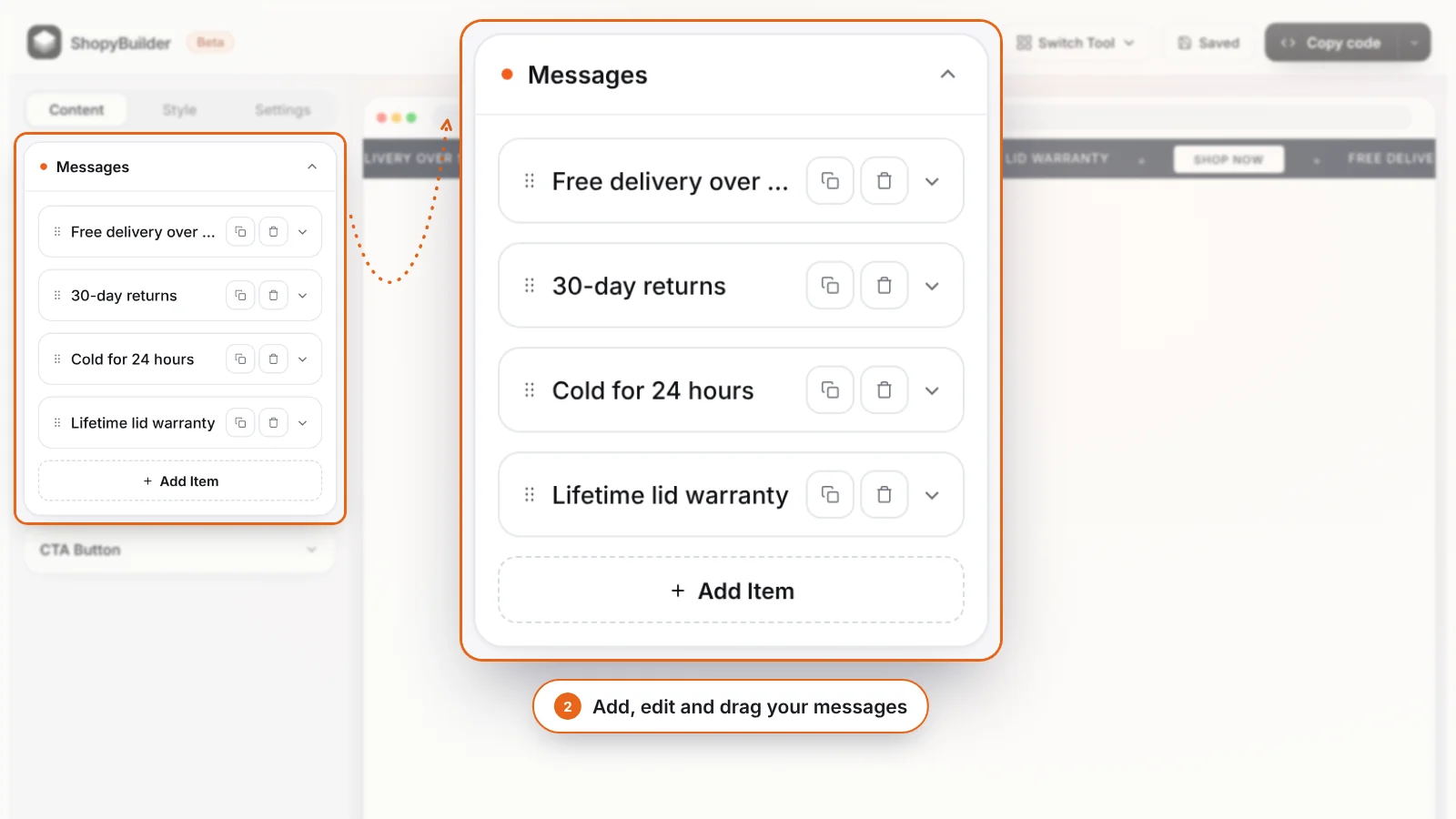
Step 2: Add, edit and drag your messages
In Messages, each row is one message. Edit the words, use Add item for another one, and drag the little handle to change the order. Keep each message to about five words.
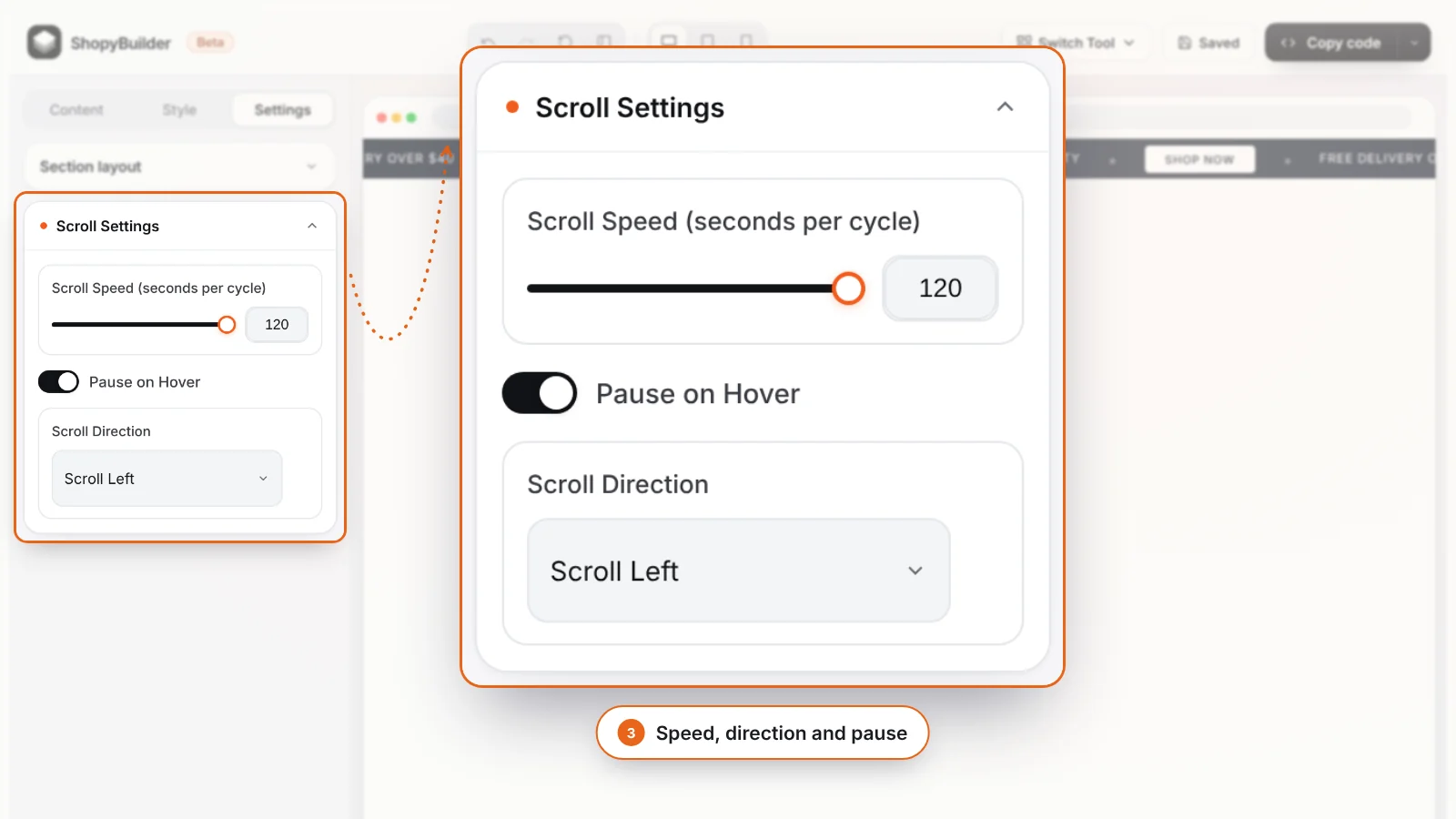
Step 3: Set the speed, direction and pause
On the Settings tab, open Scroll Settings. Choose how many seconds one full loop takes (slower is easier to read), the direction, and turn on Pause on Hover so people can stop the bar to read it.
Step 4: Copy the code
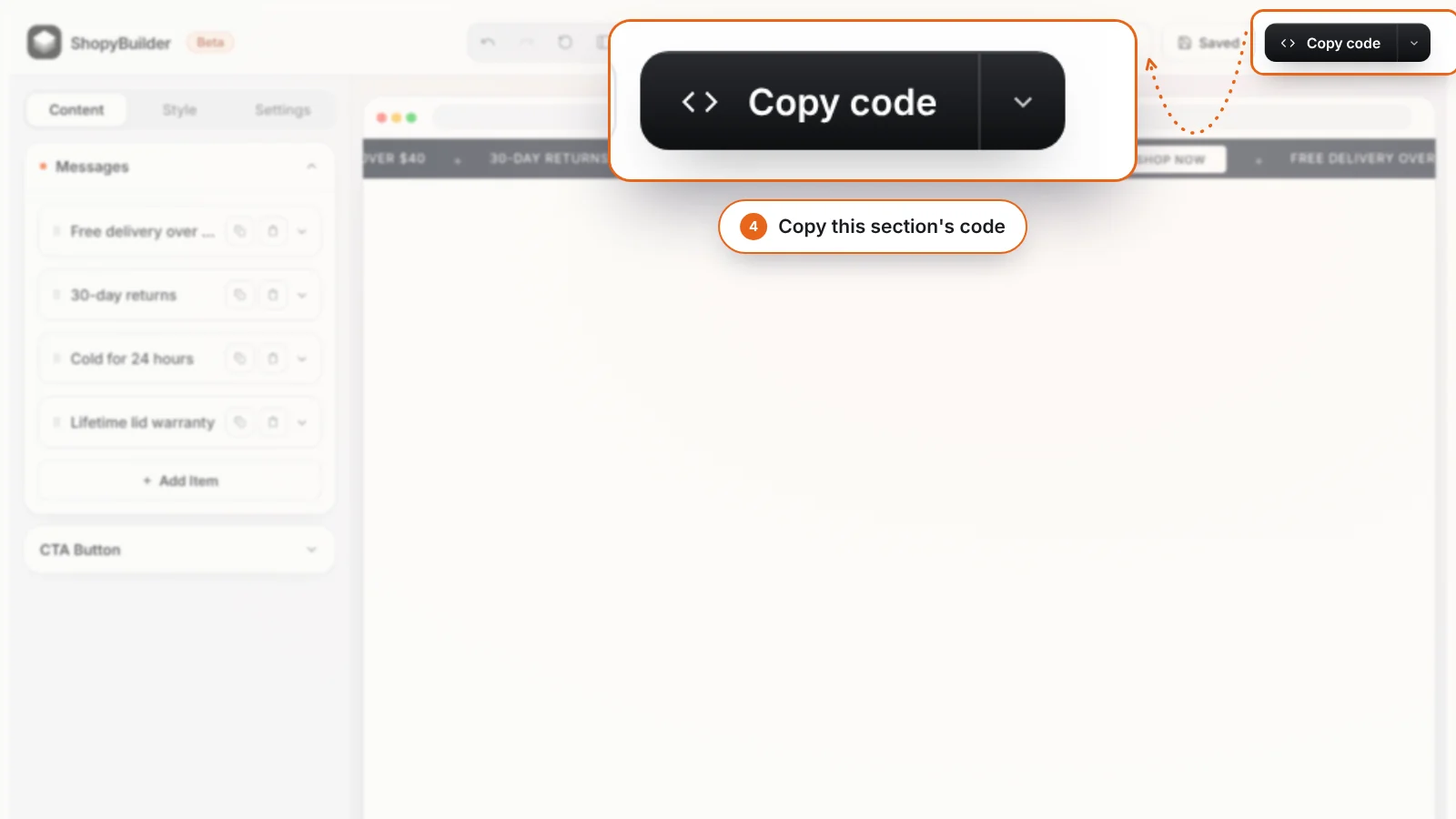
Check the section on a phone first: the desktop, tablet and phone buttons are at the top of the editor. Most of your shoppers will see it on a phone. Happy with it? Click Copy code at the top right. You get one clean block with everything the scrolling bar needs, and nothing else to install.
Step 5: Paste it into your store
In your store's admin, open the page or product template where you want the section. Add a Custom HTML block (some stores call it custom code or custom content), paste, and save. Open the live page on your phone to see it working.
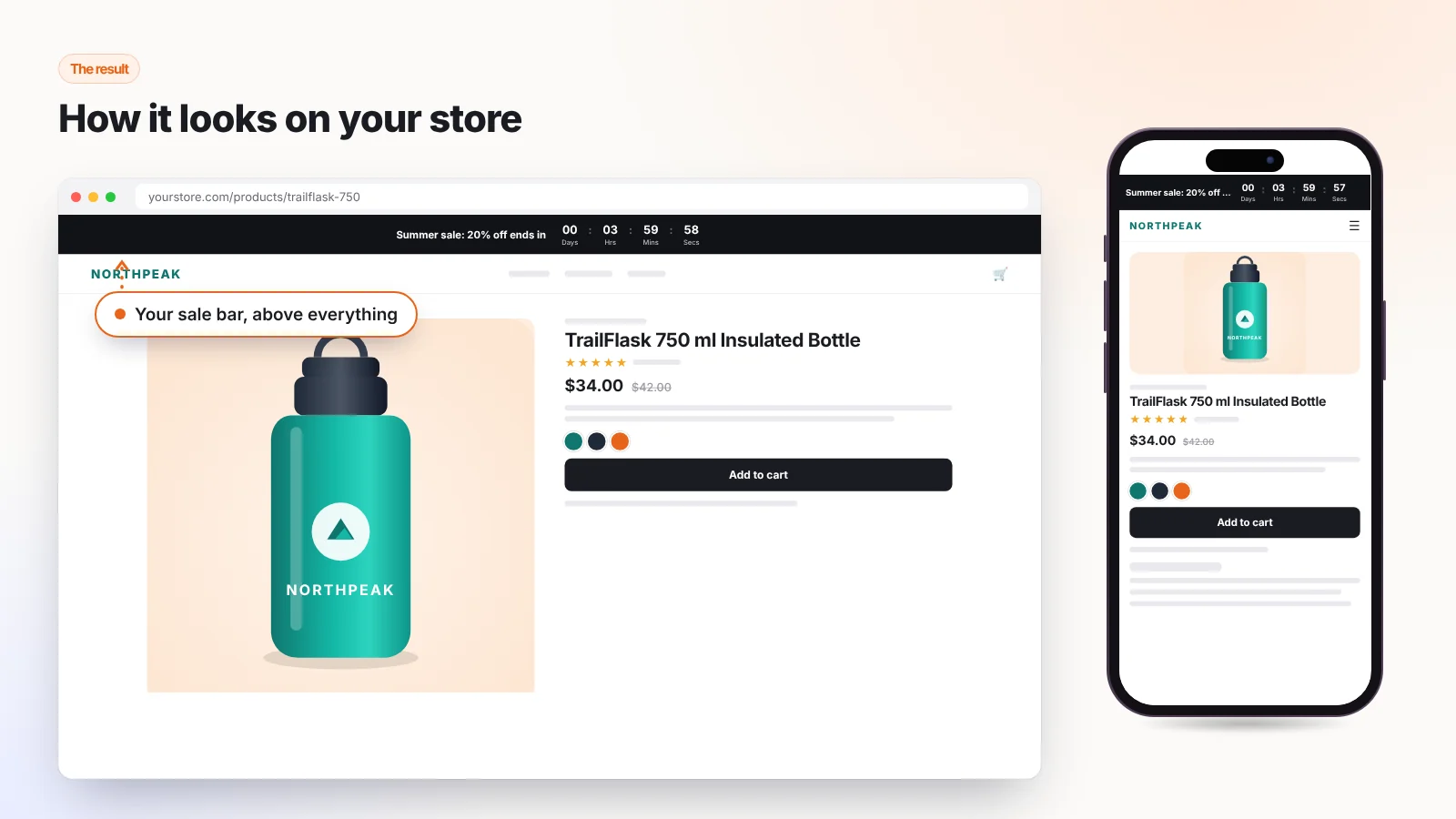
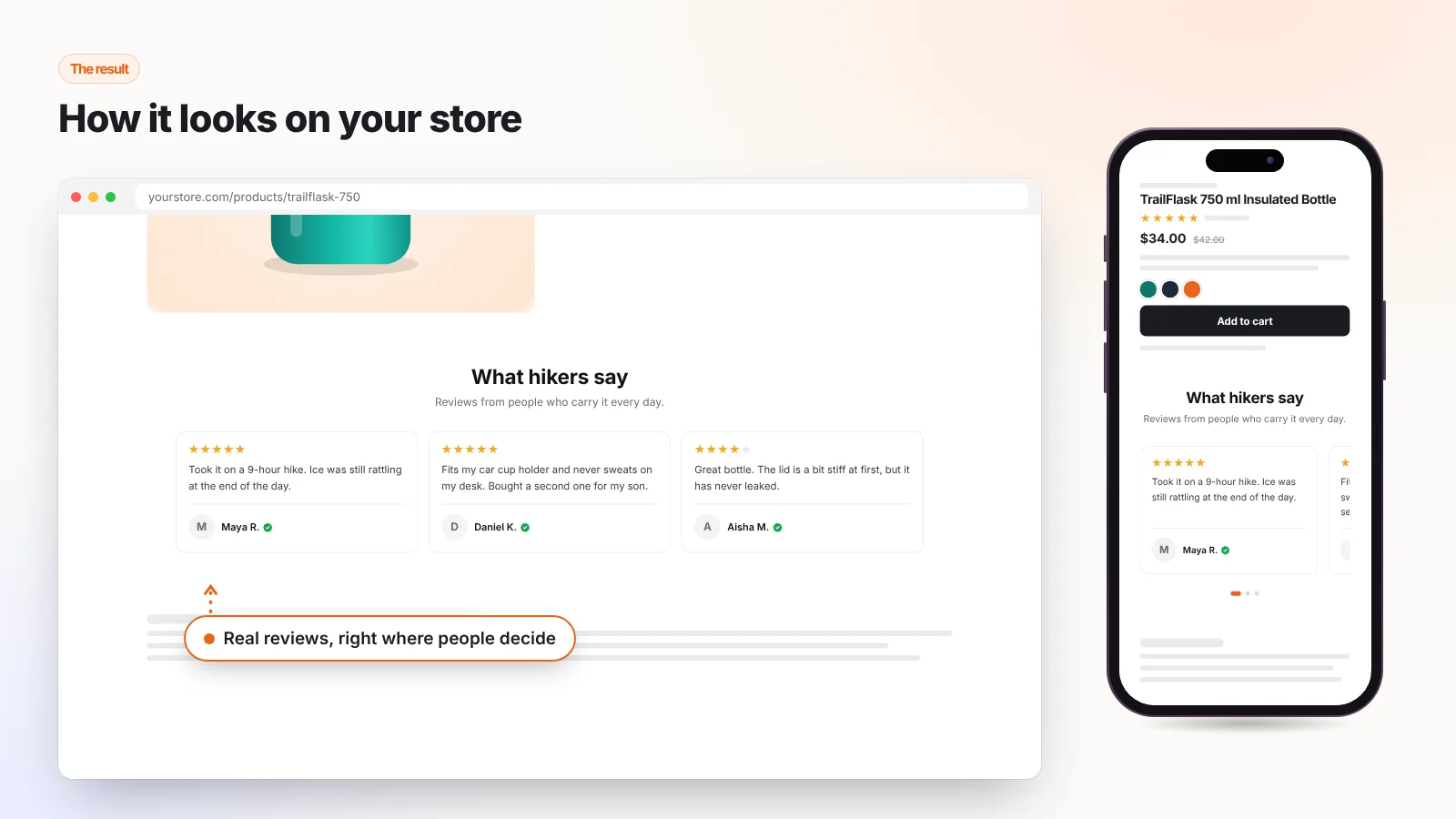
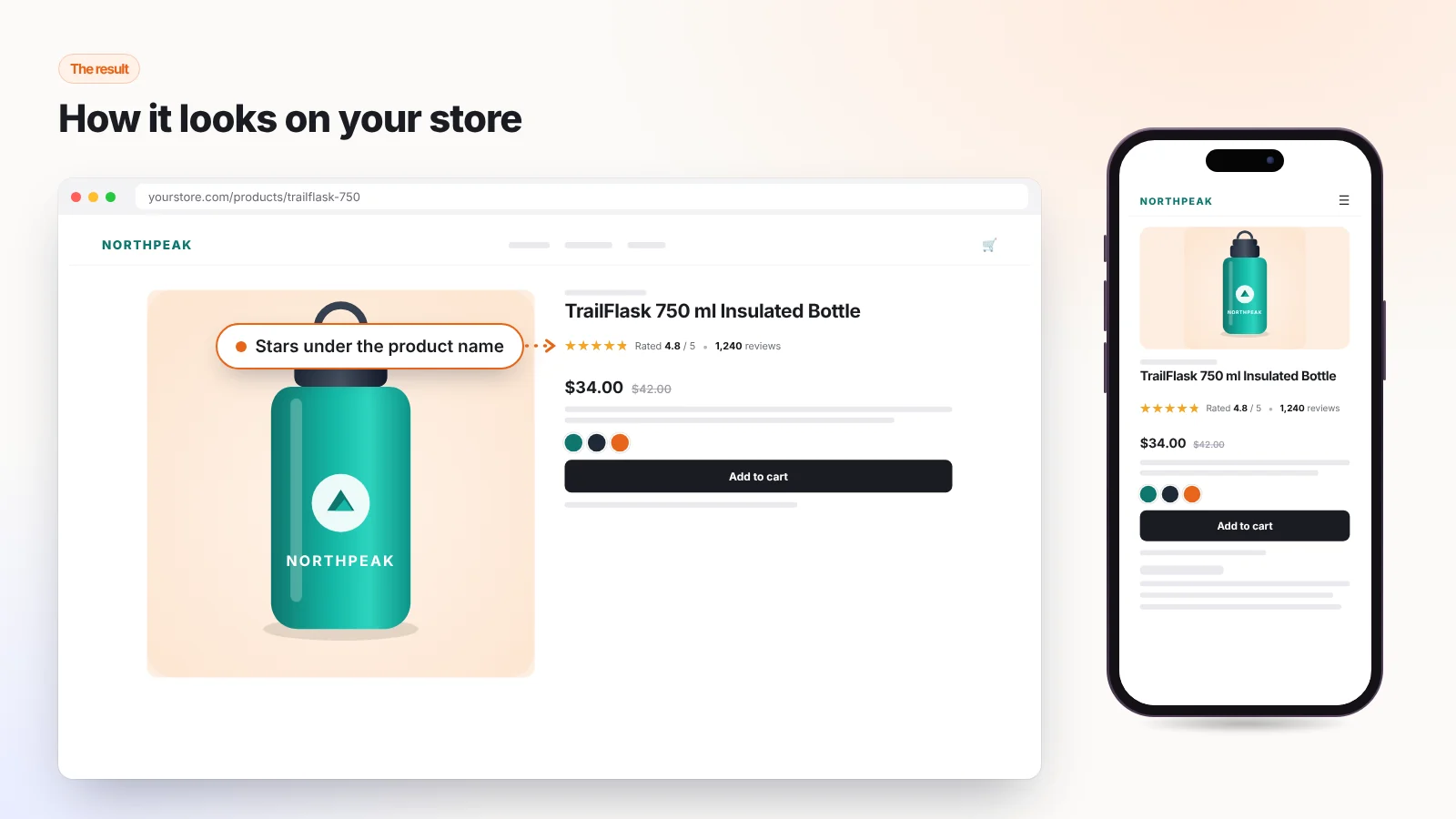
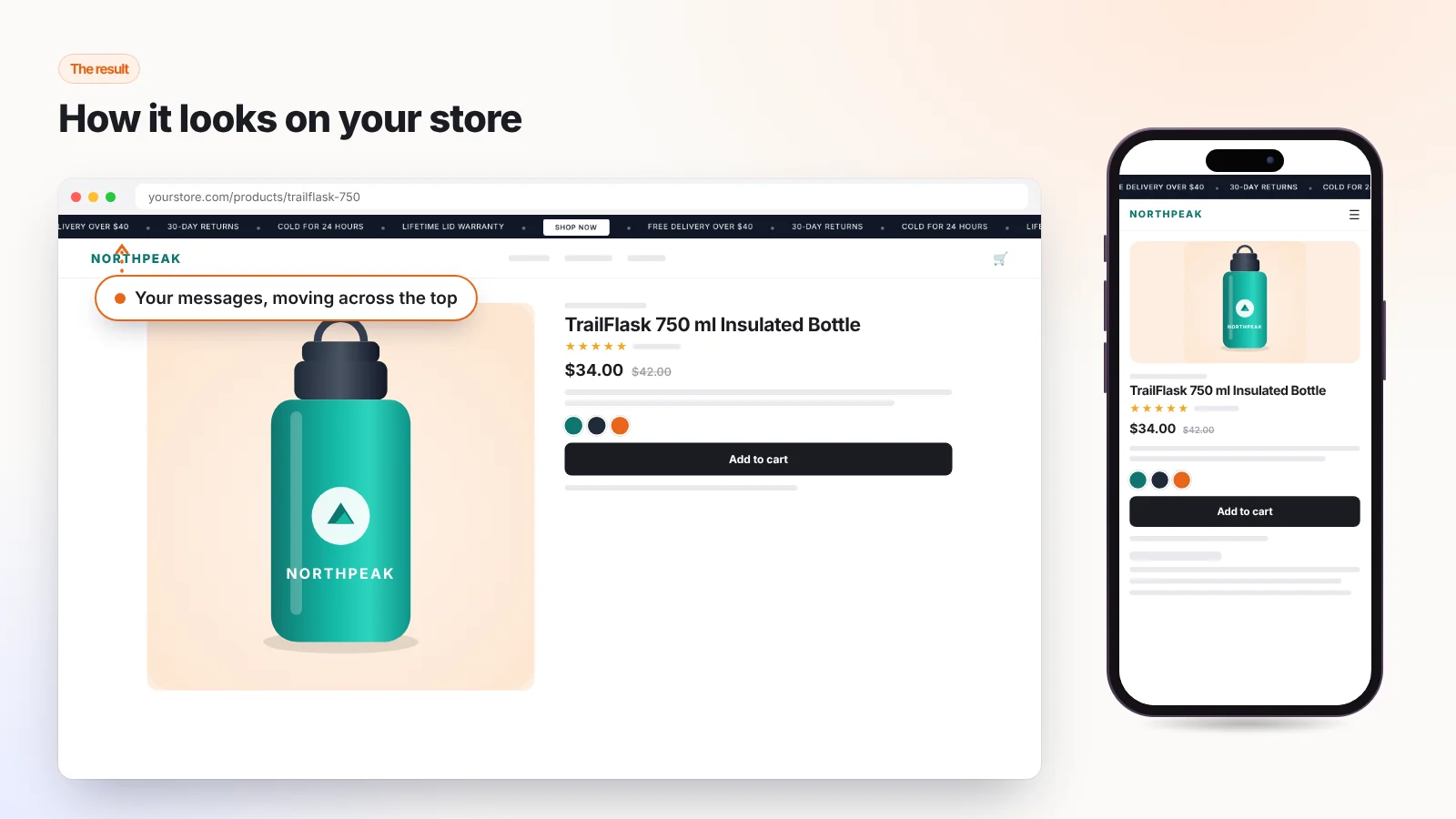
Here is what that looks like on a store, on a computer and on a phone:
Messages you can borrow
- "Free delivery over $40"
- "30-day returns, no questions"
- "Cold for 24 hours, hot for 12"
- "Lifetime warranty on every lid"
Mistakes to avoid
- Long sentences. A moving line is read in a glance.
- Too fast. If you cannot read a message in one pass, slow it down.
- Two bars on top of each other. Choose either the scrolling bar or the countdown bar.
Common questions
Will it work with my store?
Yes. The code is plain HTML, CSS and JavaScript, so it works on any ecommerce website that lets you add custom HTML to a page: hosted store builders, open-source carts or a site of your own.
Will it slow my page down?
No. Each section is one small block of code with no outside libraries to load.
Can shoppers stop the bar to read it?
Yes. Turn on Pause on Hover in Scroll Settings and the bar stops while someone points at it.
Can I add a button?
Yes. Fill in the CTA Button group with the words and the link.
Build your next product page with AI
Sections, copy, product creatives and social posts in minutes. Export clean code for your online store.