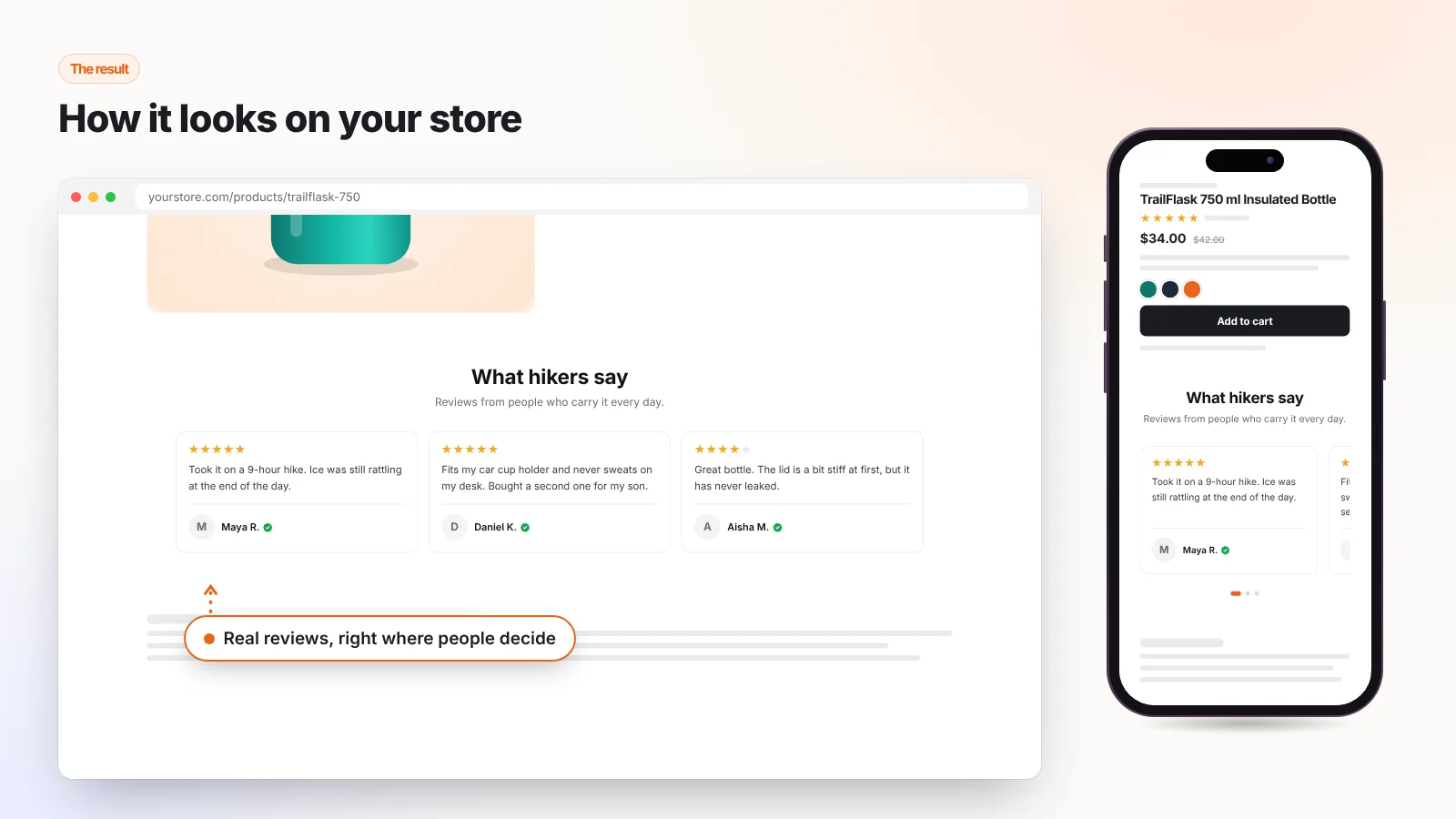
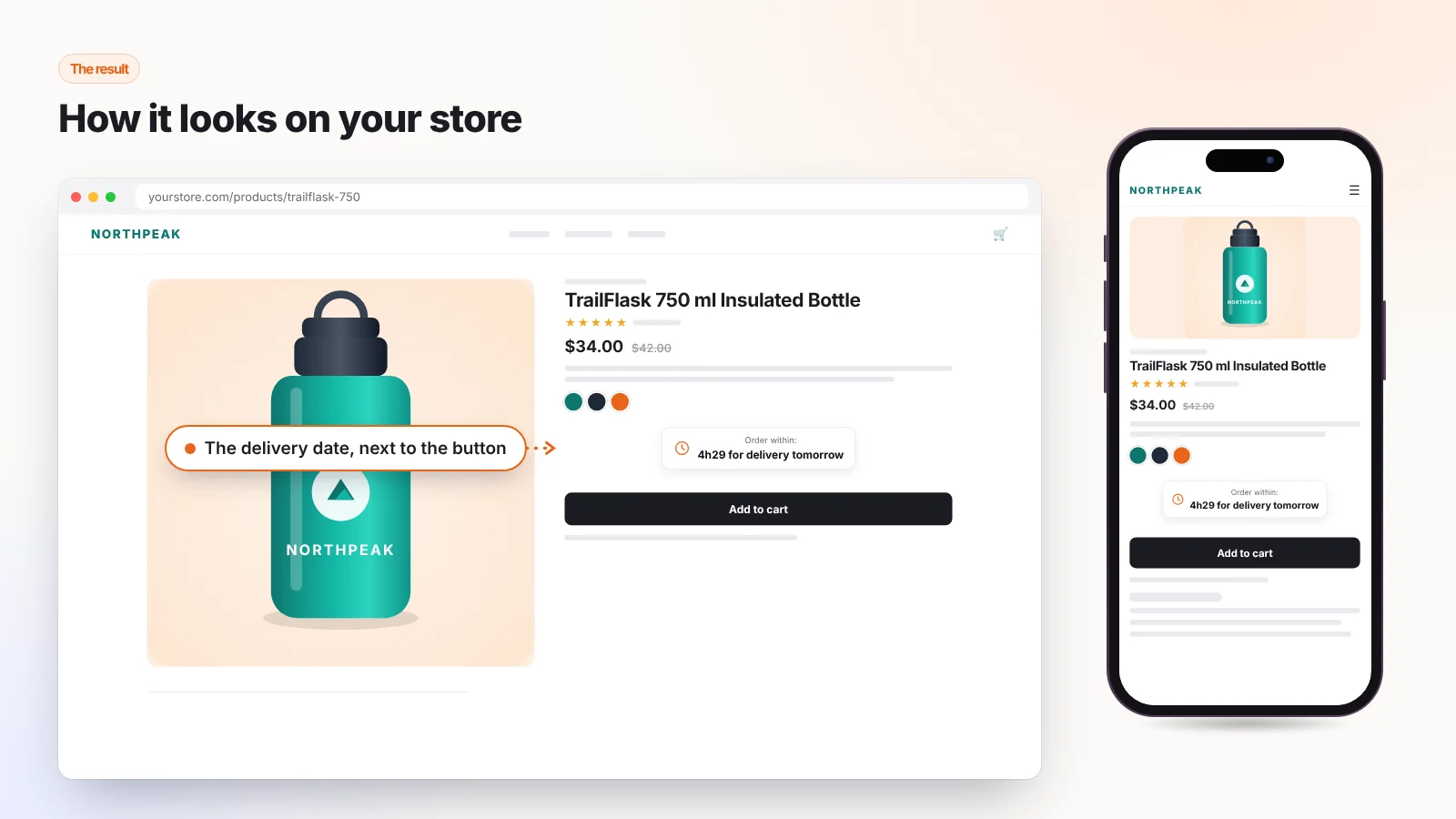
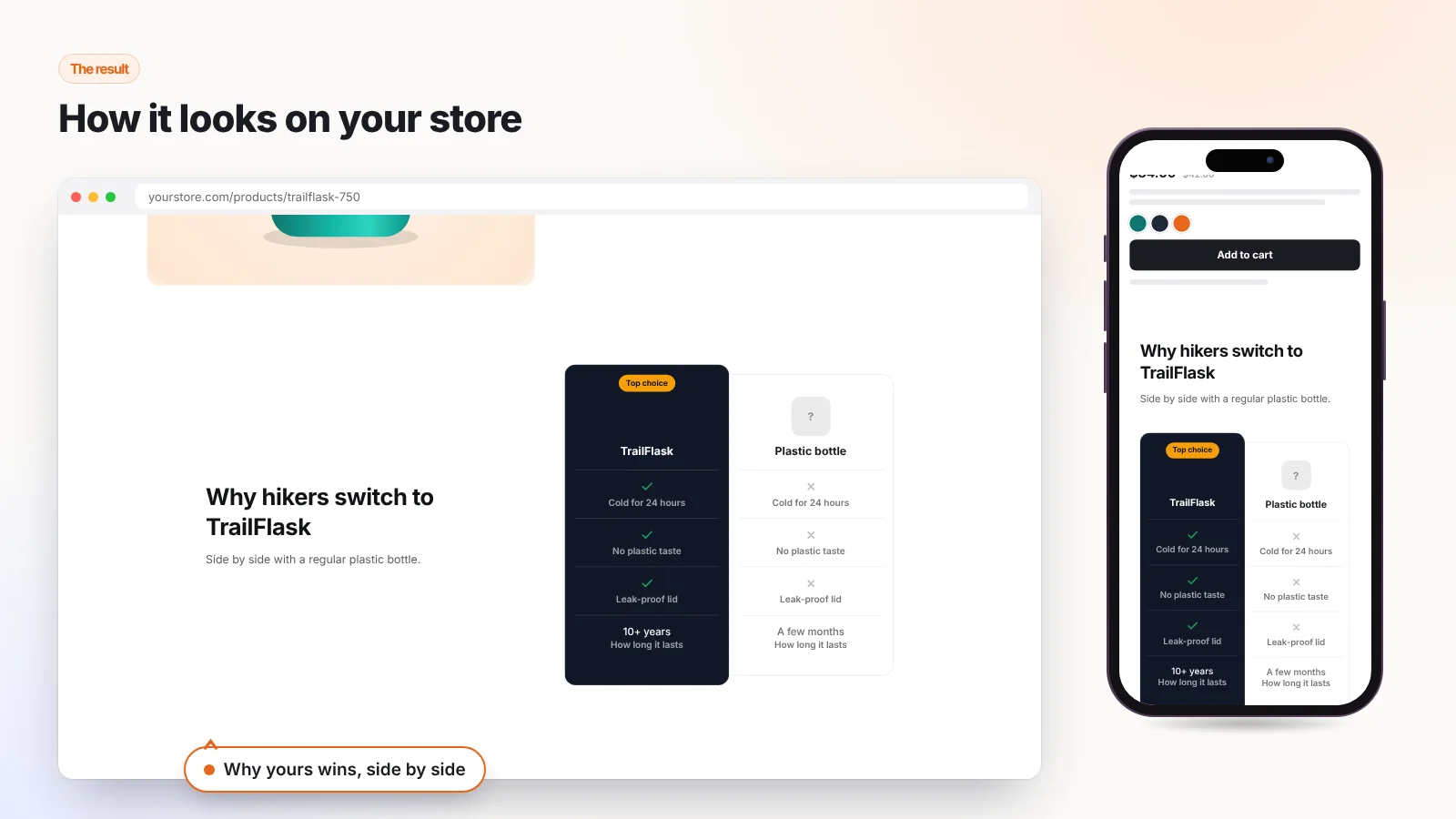
 ShopyBuilder
Watch someone shop on their phone and you will see a pattern: photo, name, price, stars. Then they decide whether to scroll on. If there are no stars, many simply move on to the next store.
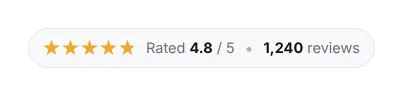
A star rating badge is a small line like "4.8 stars from 1,240 reviews" placed under the product name. It takes a minute to set up and it sits in the most-read spot of the page.
When it works best
- You have real reviews and a good average.
- Every product page: it is small enough to fit any layout.
- Next to a reviews section lower down, as a quick summary of it.
Pick a look

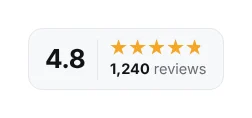
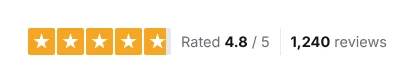
How to add it, step by step
Step 1: Open the section
Sign in to ShopyBuilder, go to All Sections and open Review Badge. The editor opens with a live preview on the right. On the left are three tabs: Content for the words, Style for colours and fonts, and Settings for width, spacing and where it shows. Every change shows up in the preview straight away, so try things freely.
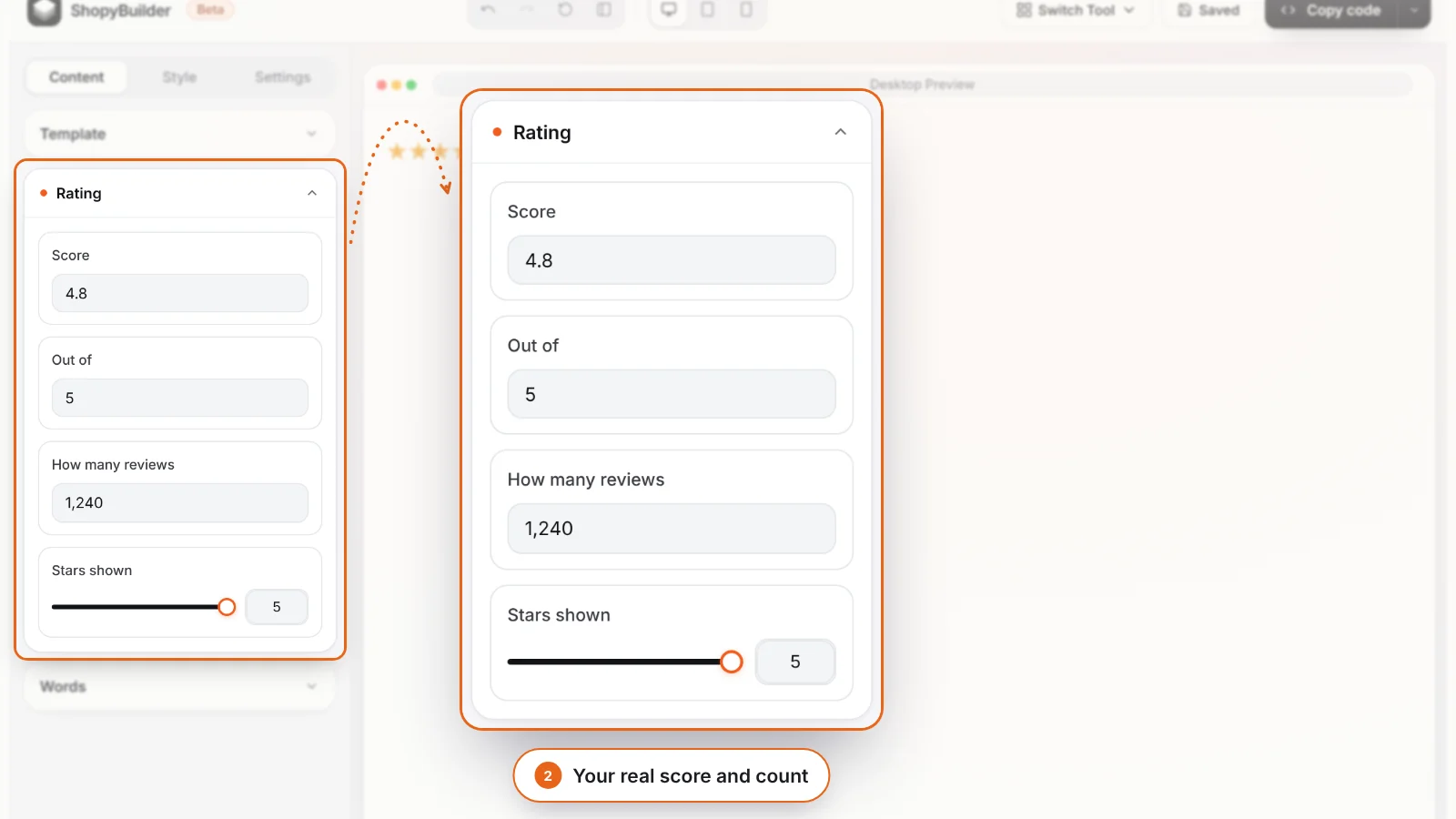
Step 2: Your real score and count
In Rating, enter your average (for example 4.8), what it is out of (5) and how many reviews you have. The stars fill to the exact score, so 4.8 shows the last star almost full.
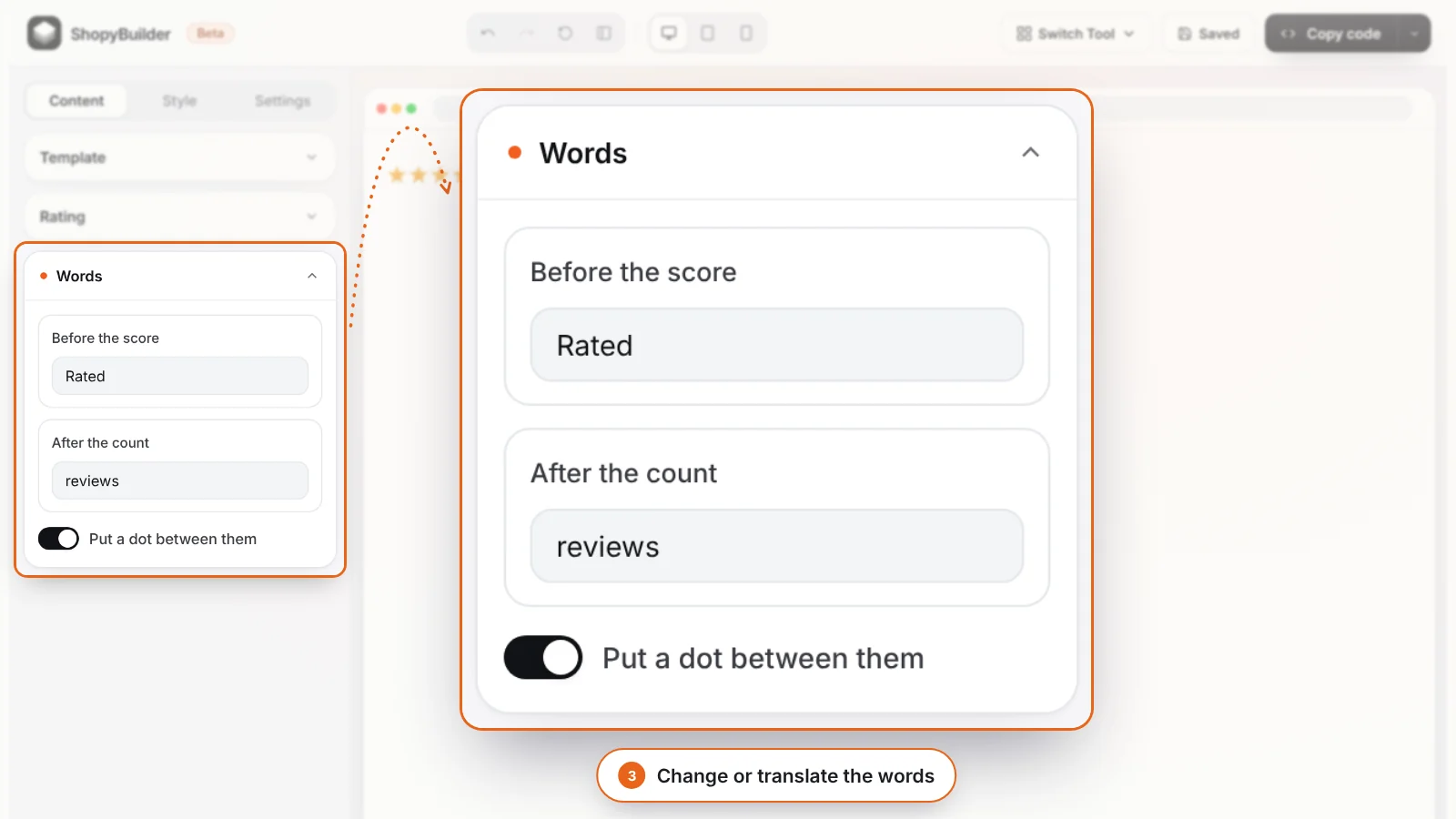
Step 3: Change or translate the words
In Words, change "Rated" and "reviews" or translate them, and choose whether a dot sits between the score and the count.
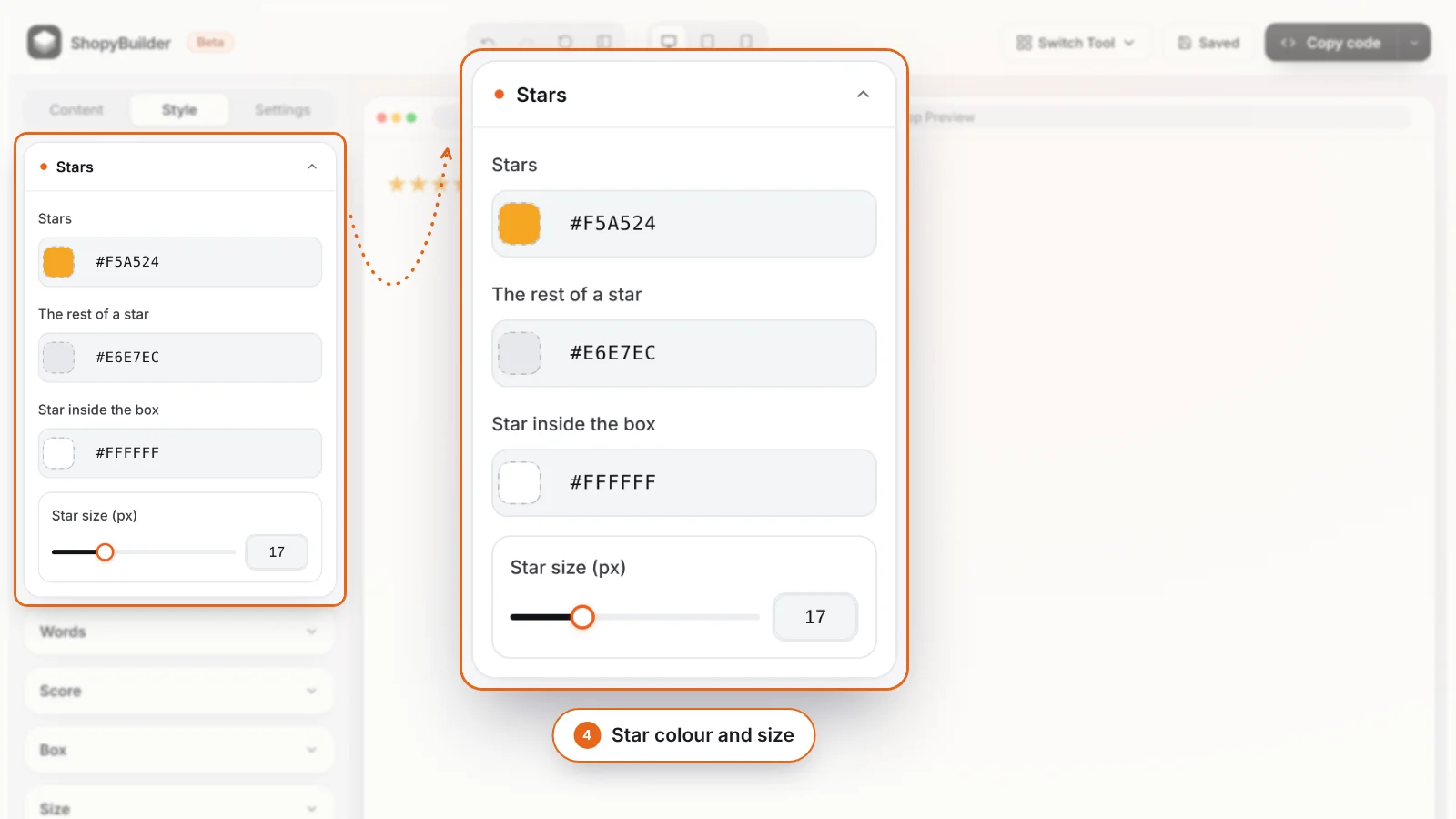
Step 4: Star colour and size
On the Style tab, open Stars to set their colour and size. Gold or orange stars are what most shoppers expect.
Step 5: Copy the code
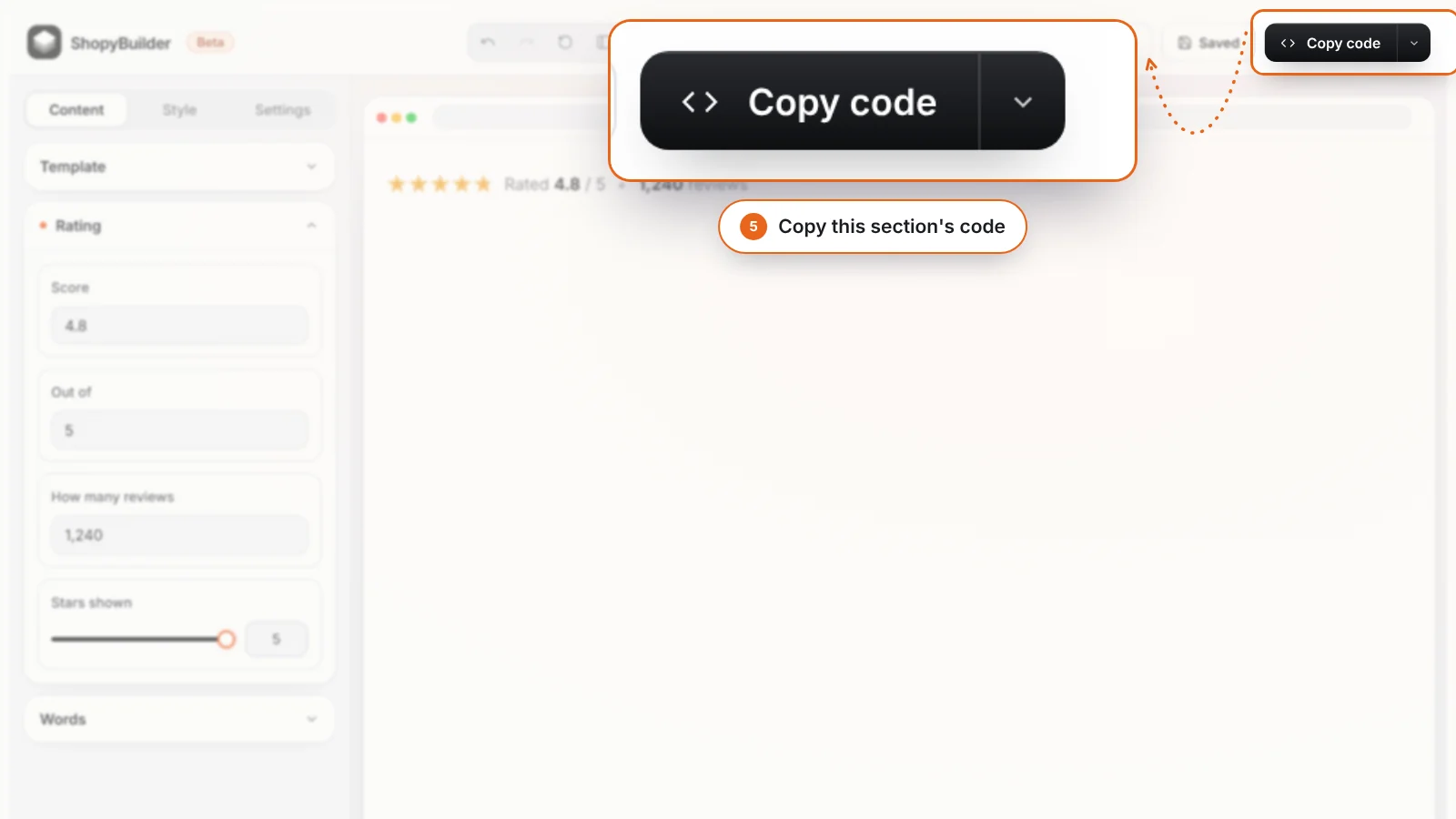
Check the section on a phone first: the desktop, tablet and phone buttons are at the top of the editor. Most of your shoppers will see it on a phone. Happy with it? Click Copy code at the top right. You get one clean block with everything the rating badge needs, and nothing else to install.
Step 6: Paste it into your store
In your store's admin, open the page or product template where you want the section. Add a Custom HTML block (some stores call it custom code or custom content), paste, and save. Open the live page on your phone to see it working.
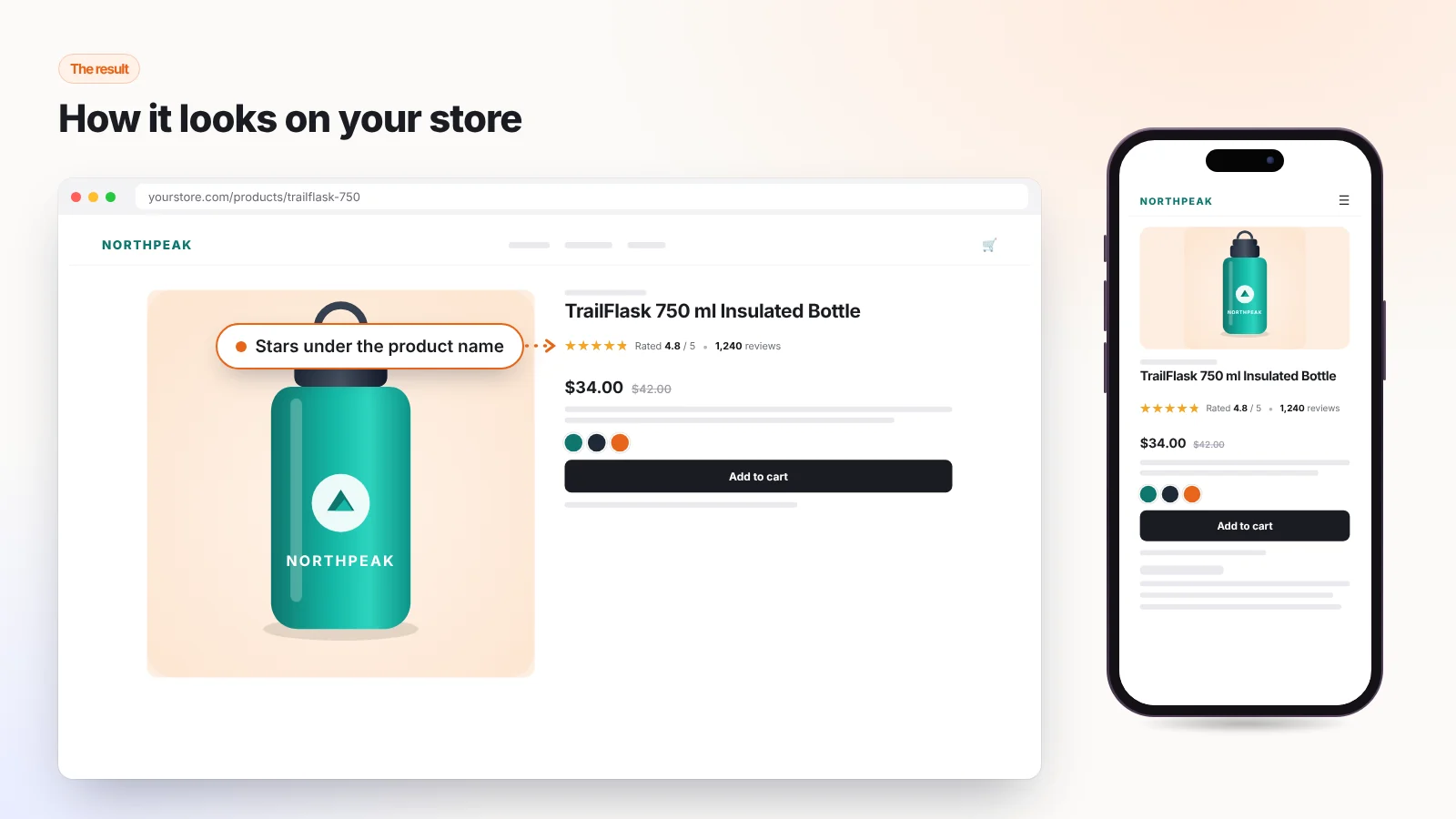
Here is what that looks like on a store, on a computer and on a phone:
Mistakes to avoid
- A made-up rating. Never show a score you do not have. New product? Use a trust bar (free delivery, easy returns) until reviews come in.
- A frozen count. Update the number as reviews grow; "12 reviews" from two years ago looks like a quiet shop.
Common questions
Will it work with my store?
Yes. The code is plain HTML, CSS and JavaScript, so it works on any ecommerce website that lets you add custom HTML to a page: hosted store builders, open-source carts or a site of your own.
Will it slow my page down?
No. Each section is one small block of code with no outside libraries to load.
Do I need to show the number of reviews?
It helps: "4.8 from 1,240 reviews" is more believable than "4.8" alone. You can still leave it out.
Build your next product page with AI
Sections, copy, product creatives and social posts in minutes. Export clean code for your online store.