 ShopyBuilder
You set up a great summer sale. Then you check your orders and notice something odd: plenty of people paid full price. They simply never saw the offer. It was on the home page banner, and most shoppers never land on the home page.
An announcement bar solves this. It is the thin strip at the very top of your store, on every page, above even the menu. Add a countdown timer to it and the offer gets a deadline, which is often the nudge people need to buy today instead of "later".
When an announcement bar works best
- A sale with a real end: a weekend sale, a festival offer, a launch week.
- A free delivery line: "Free delivery over $40" quietly raises the order size.
- A restock or a new colour you want every visitor to notice.
It is less useful for long messages. If you need more than one line, look at the scrolling bar instead.
Pick a look
The section comes in three looks. All of them show the message, the timer and an optional button.



How to add it, step by step
Step 1: Open the section
Sign in to ShopyBuilder, go to All Sections and open Announcement Bar. The editor opens with a live preview on the right. On the left are three tabs: Content for the words, Style for colours and fonts, and Settings for width, spacing and where it shows. Every change shows up in the preview straight away, so try things freely.
Step 2: Write one short message
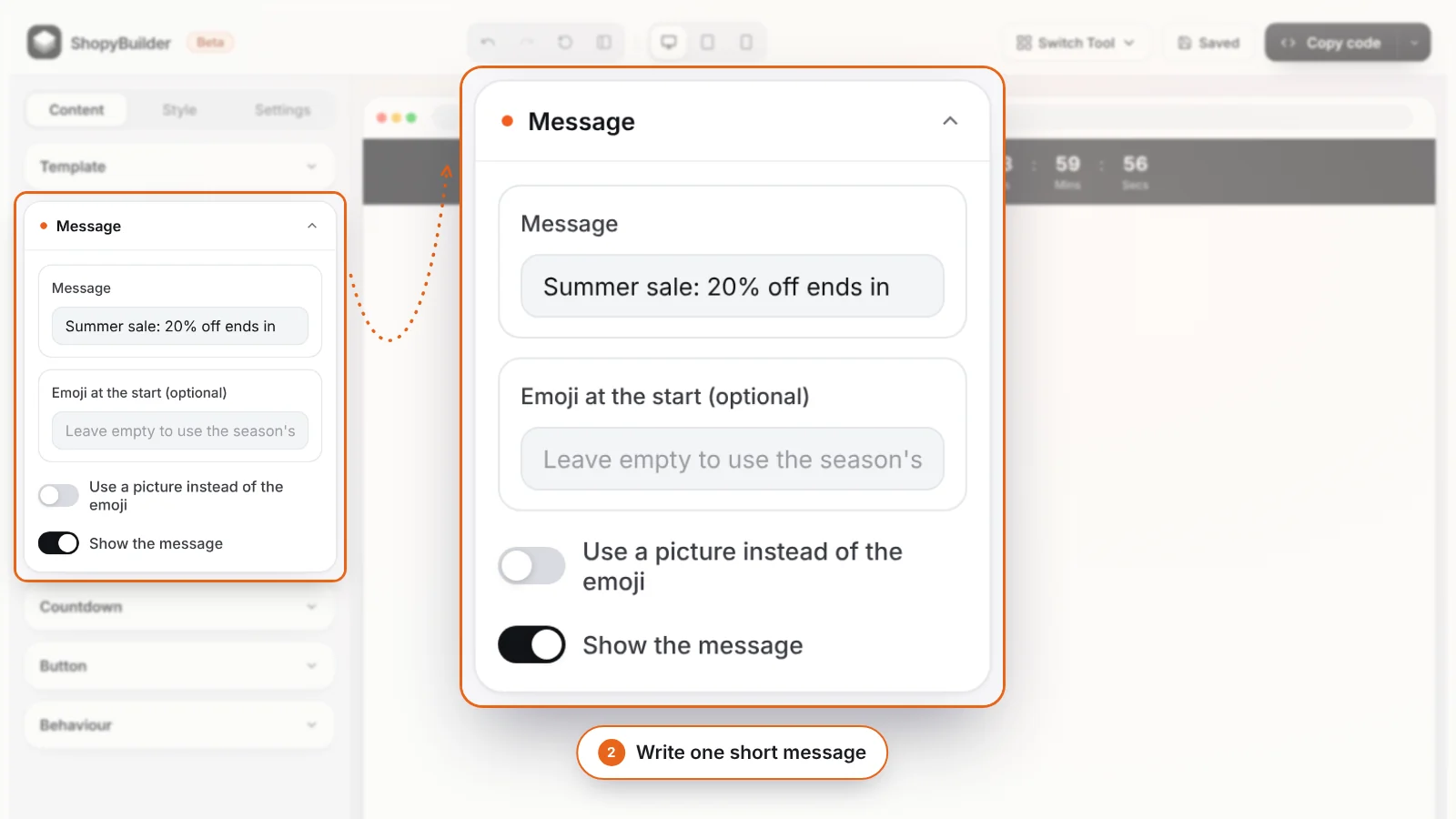
Open Message and write your line, for example "Summer sale: 20% off ends in". Keep it under about 40 characters so it fits on one line on a phone. You can add an emoji at the start, or a small picture instead.
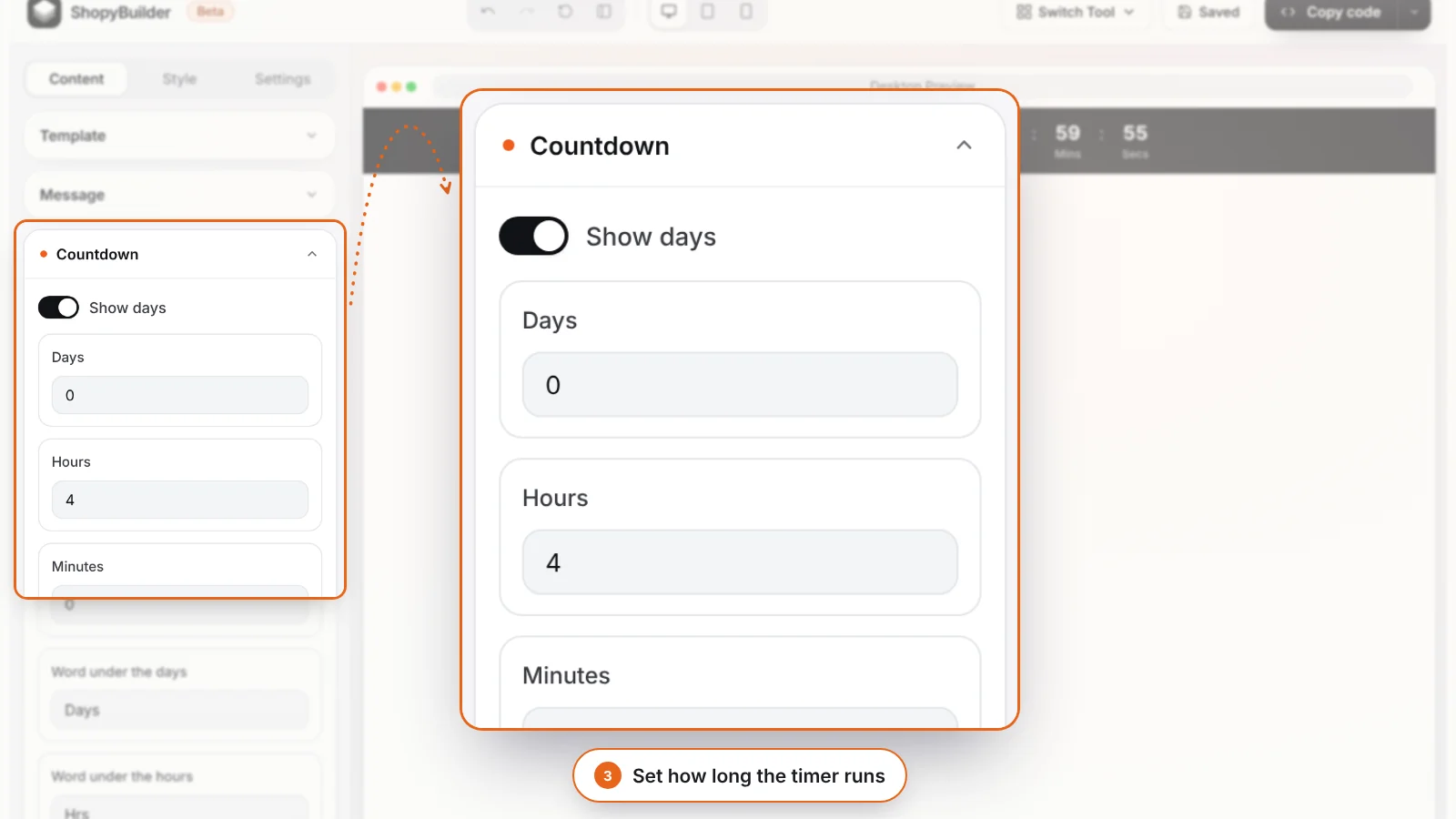
Step 3: Set how long the timer runs
In Countdown, set the days, hours and minutes. Match it to how long your offer really has left. Below that you can rename the small words under the numbers (Days, Hrs, Mins, Secs), which is handy if you sell in another language.
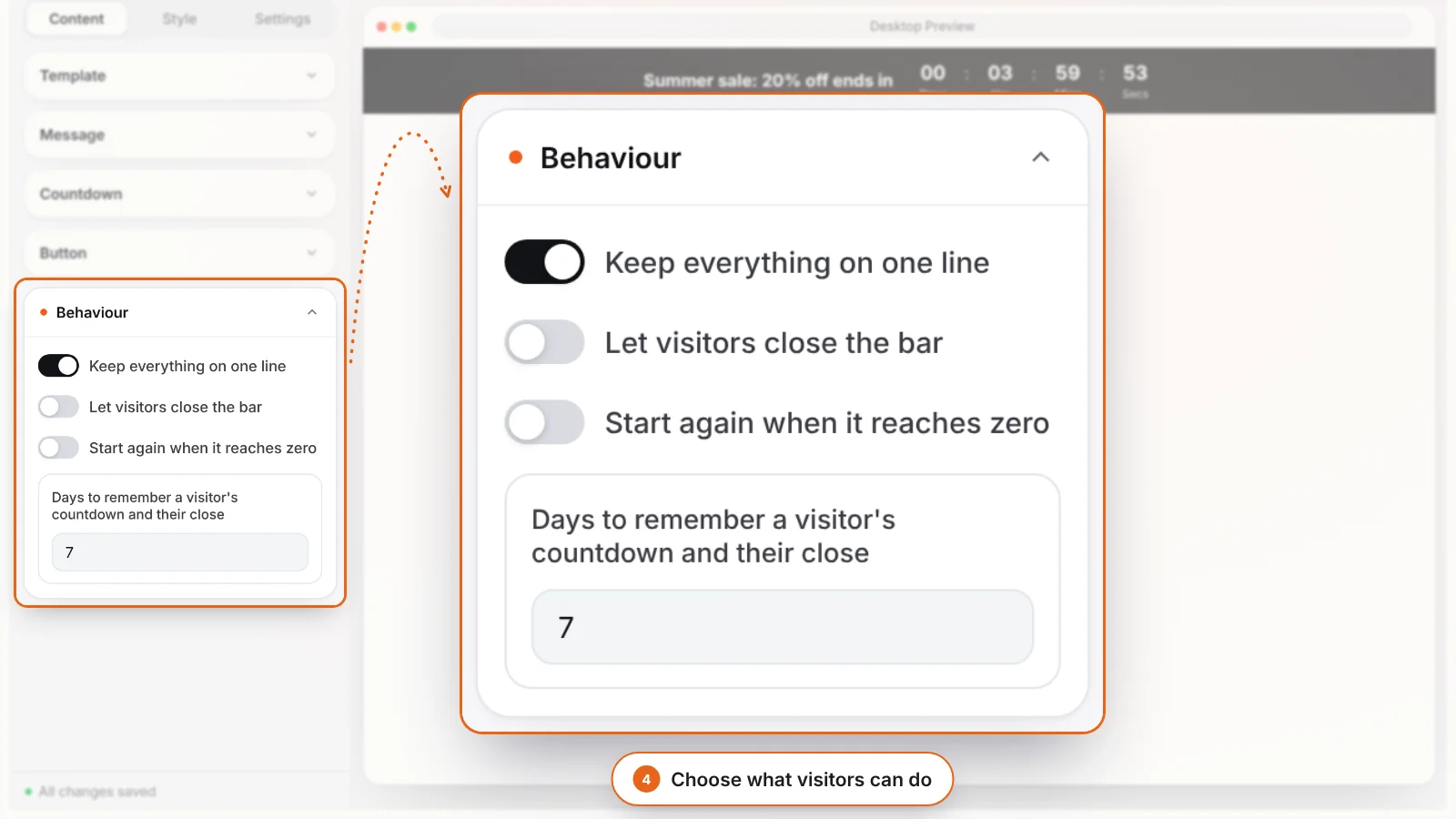
Step 4: Choose what visitors can do
In Behaviour you decide if visitors may close the bar, and how many days a visitor's timer is remembered, so a page reload does not start it again. For a sale with a real end, leave "Start again when it reaches zero" off.
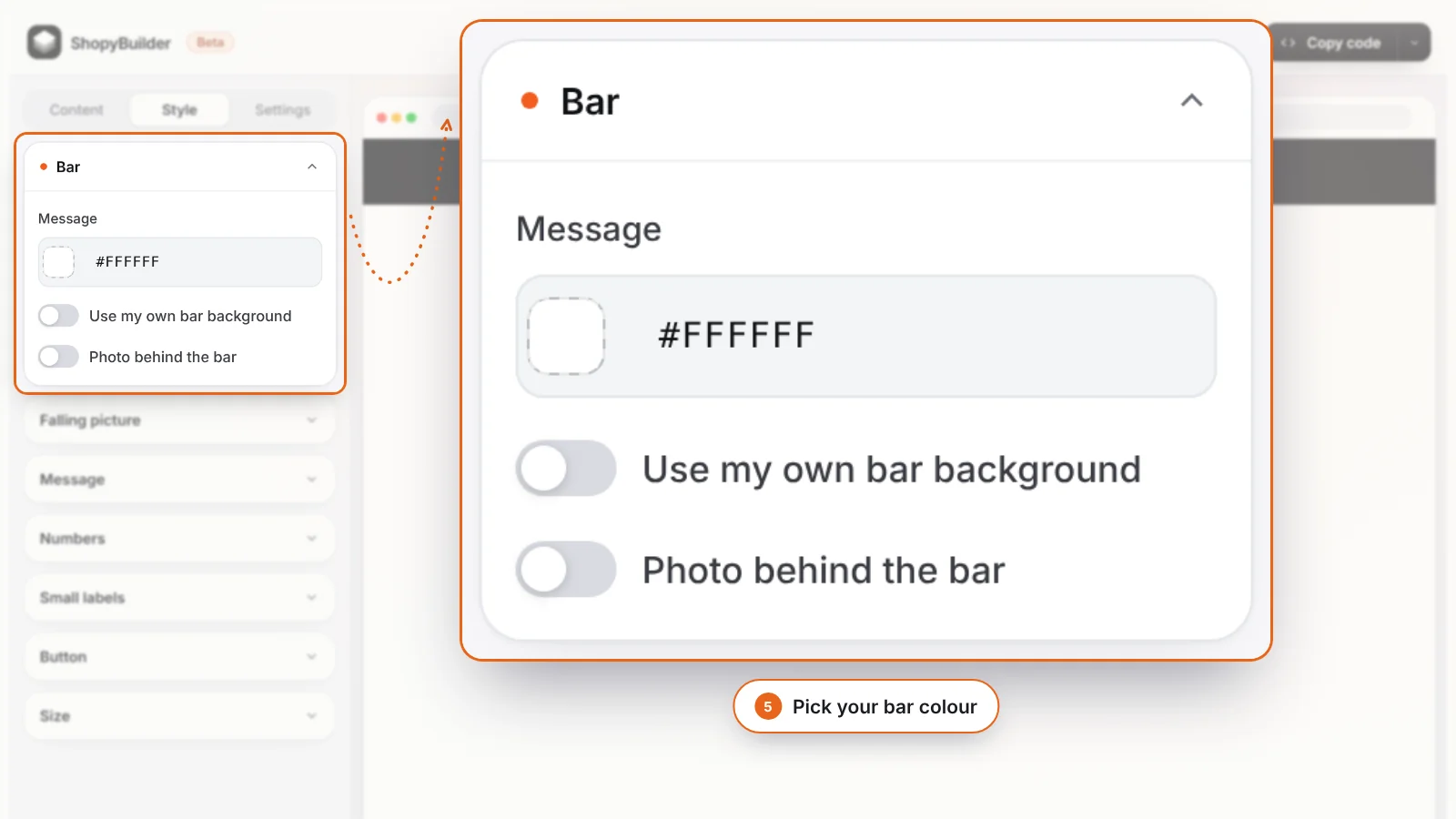
Step 5: Pick your bar colour
On the Style tab, open Bar and choose a colour, either solid or a gradient. Go for strong contrast: light text on a dark bar, or the other way round. The bar is small, so it has to be easy to read at a glance.
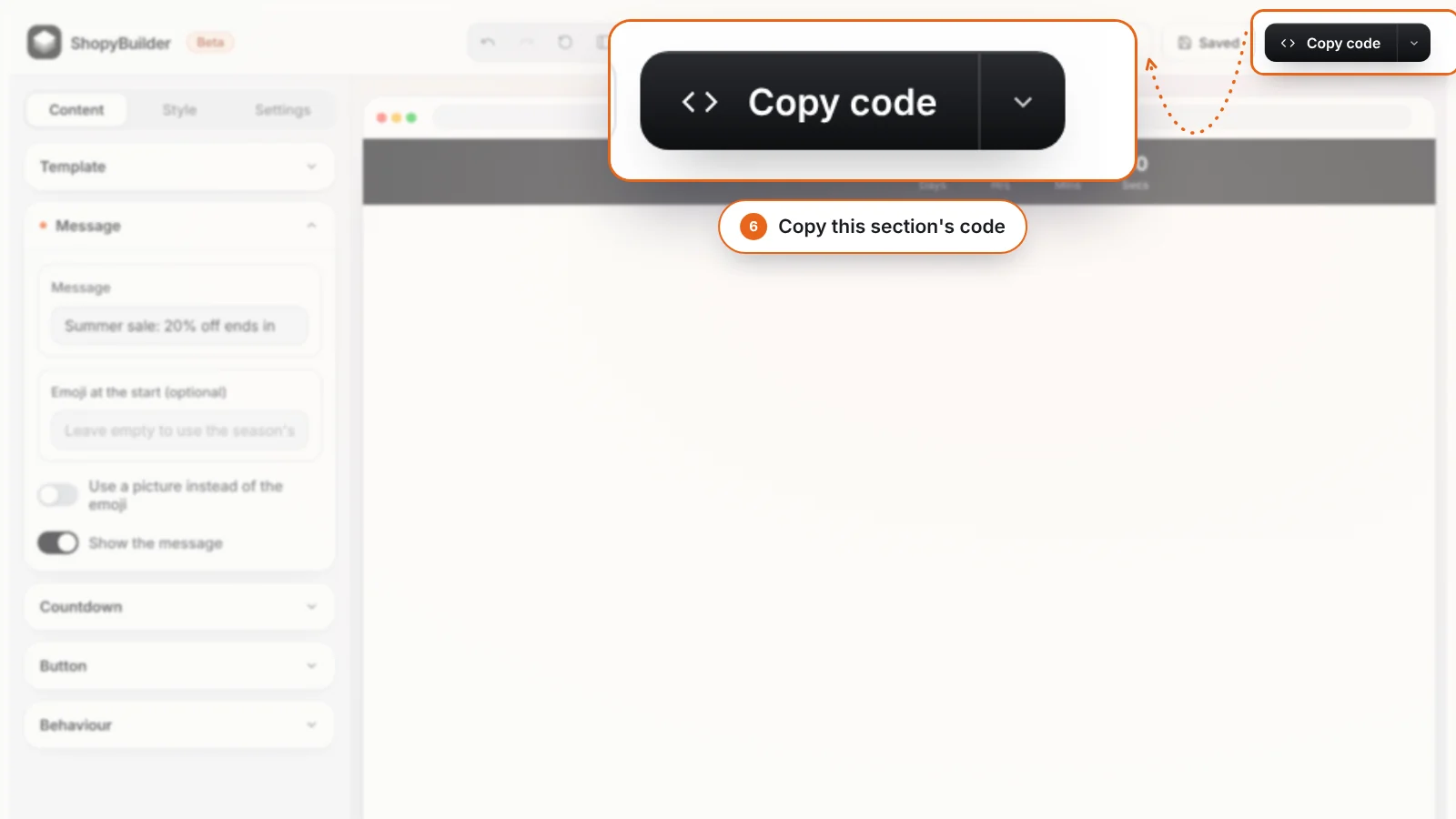
Step 6: Copy the code
Check the section on a phone first: the desktop, tablet and phone buttons are at the top of the editor. Most of your shoppers will see it on a phone. Happy with it? Click Copy code at the top right. You get one clean block with everything the announcement bar needs, and nothing else to install.
Step 7: Paste it into your store
In your store's admin, open the page or product template where you want the section. Add a Custom HTML block (some stores call it custom code or custom content), paste, and save. Open the live page on your phone to see it working.
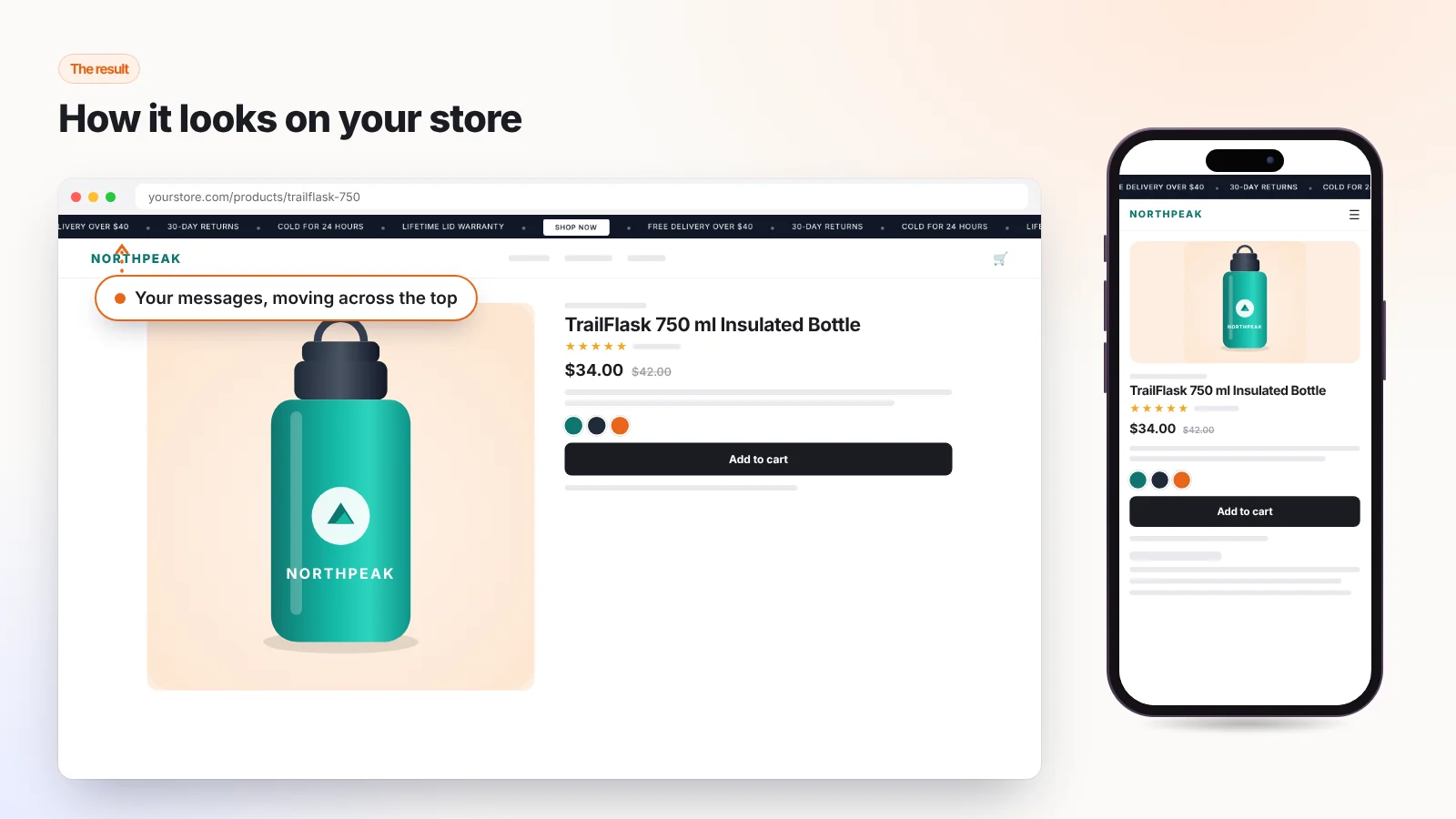
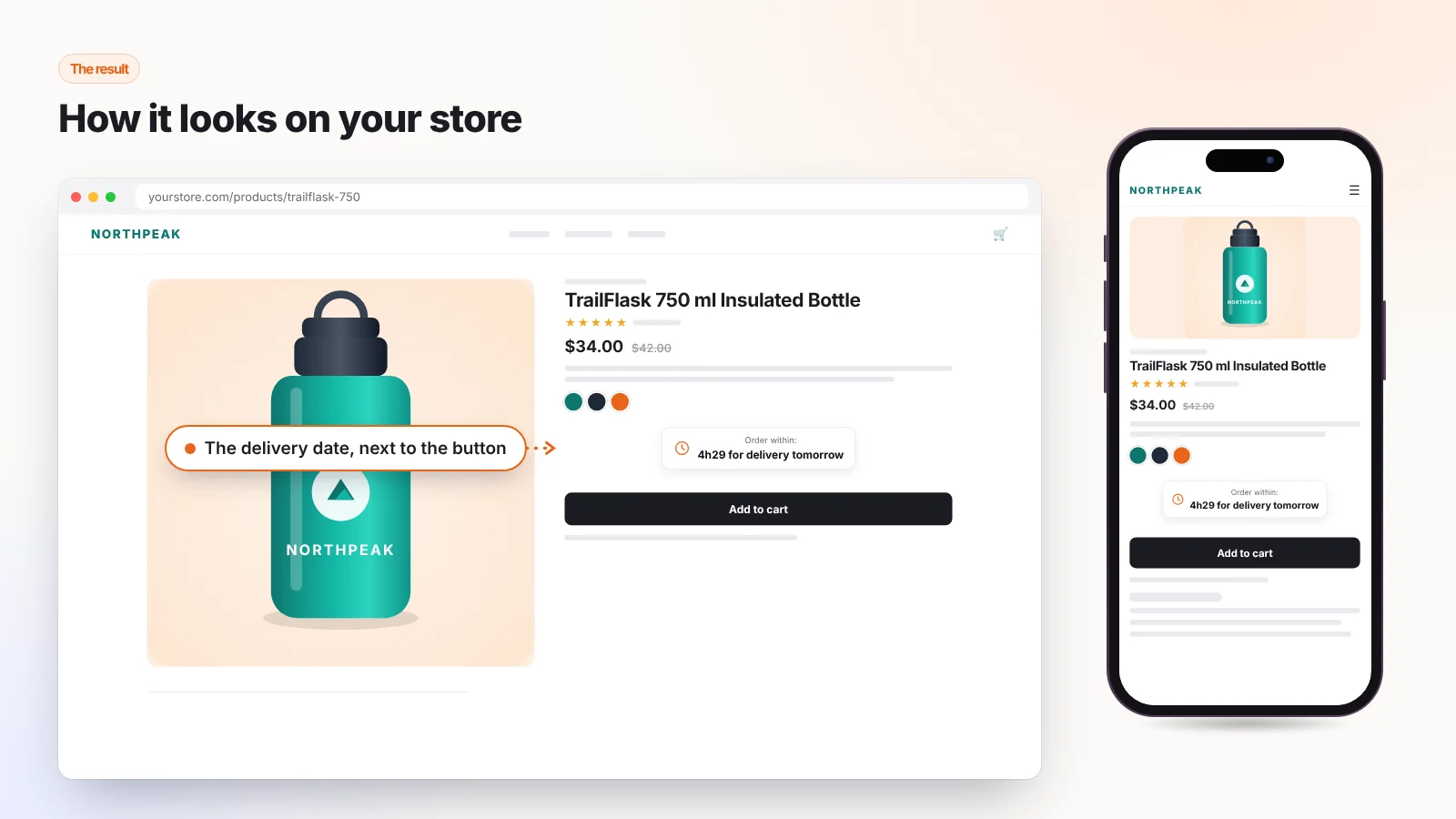
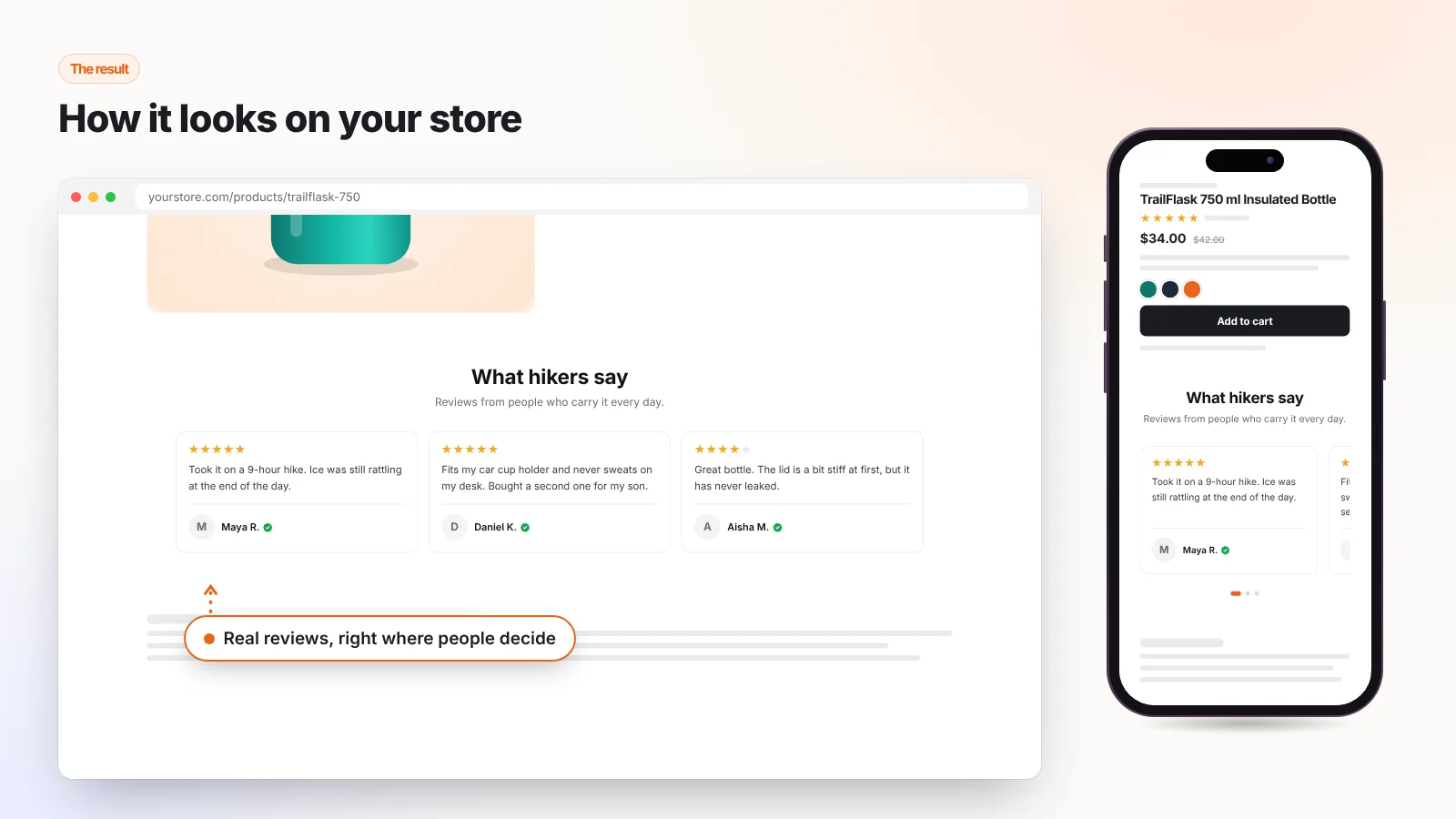
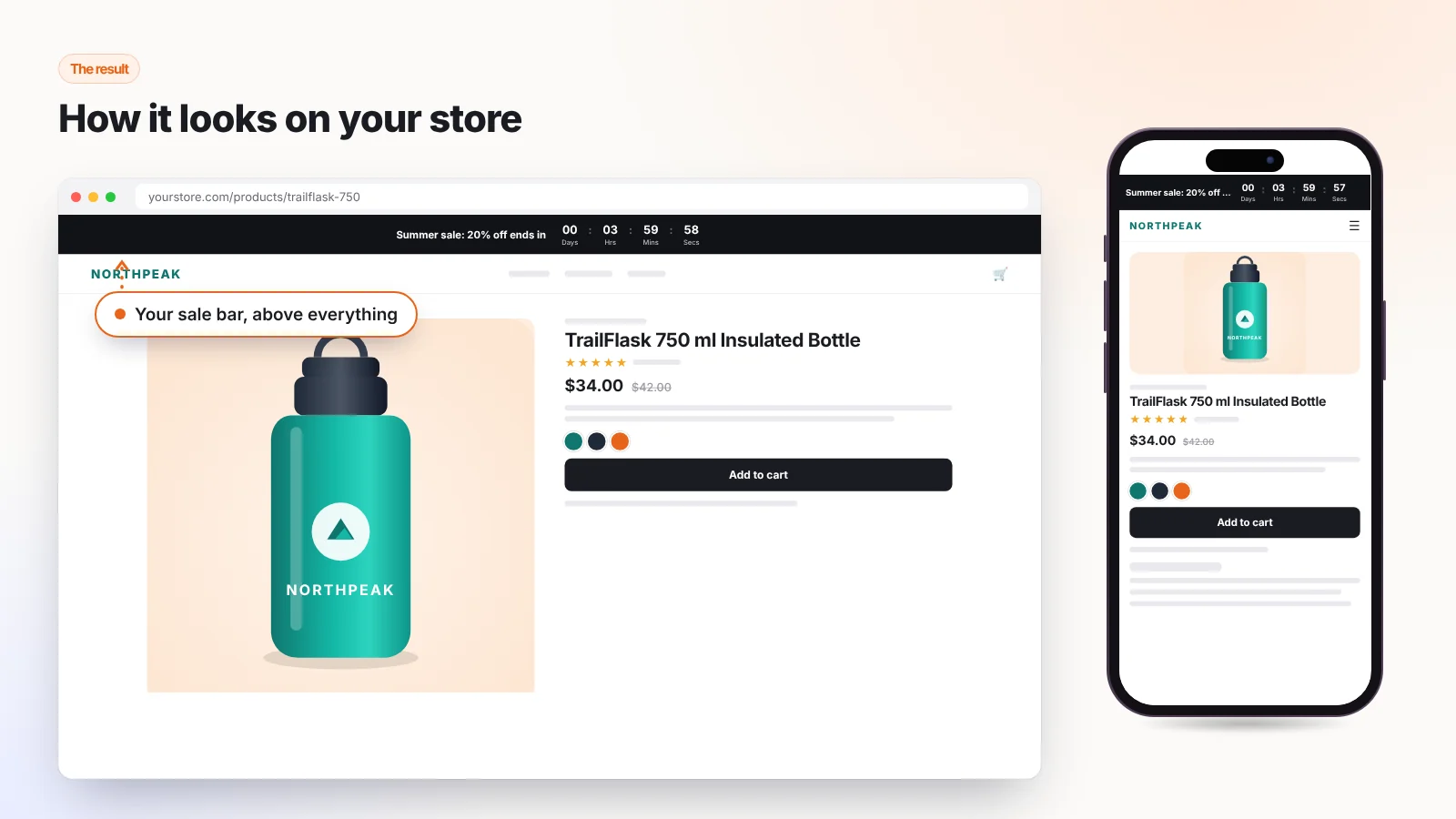
Here is what that looks like on a store, on a computer and on a phone:
Messages you can borrow
- "Summer sale: 20% off ends in" (with the timer)
- "Free delivery on orders over $40"
- "Back in stock: Sunset Orange, while it lasts"
- "Order by 2 pm for same-day dispatch"
Mistakes to avoid
- A fake deadline. A timer that starts again on every visit is easy to spot and costs you trust. Use it only for real offers.
- Three messages in one bar. Pick the strongest one.
- Leaving an old sale up. Take the bar down the day the offer ends.
Common questions
Will it work with my store?
Yes. The code is plain HTML, CSS and JavaScript, so it works on any ecommerce website that lets you add custom HTML to a page: hosted store builders, open-source carts or a site of your own.
Will it slow my page down?
No. Each section is one small block of code with no outside libraries to load.
How does the timer count?
It starts when a visitor first sees the bar and runs for the time you set. It is remembered for that visitor for the number of days you choose, so reloading does not restart it.
Can visitors close the bar?
Yes. Turn on "Let visitors close the bar" in Behaviour, and it stays closed for them.
Build your next product page with AI
Sections, copy, product creatives and social posts in minutes. Export clean code for your online store.