 ShopyBuilder
You can write the best product description in the world, and a shopper will still scroll down looking for one thing: what did other people think? A short line from a real buyer, with five stars and a first name, often does more than three paragraphs of your own words.
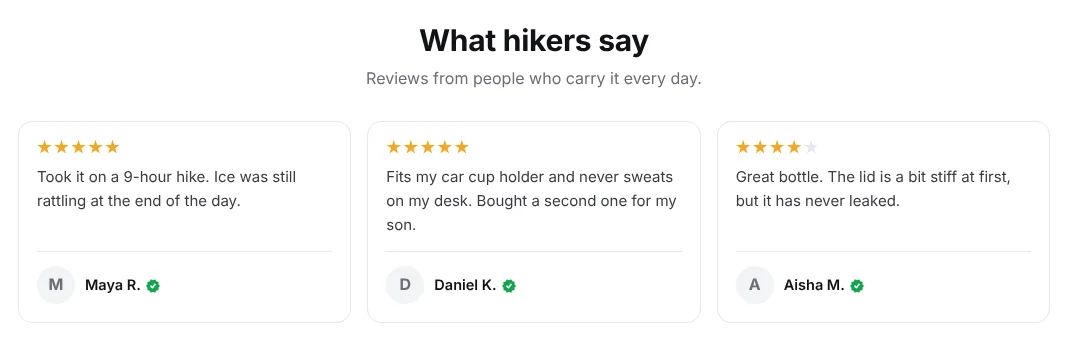
The Review Slider shows a few of your best reviews side by side on a computer, and lets people swipe through them on a phone.
When it works best
- You already have a handful of good reviews from real buyers.
- The product makes a promise people doubt ("cold for 24 hours"): a review that confirms it is worth more than your claim.
- Higher-priced items, where people need more reassurance.
Pick a look
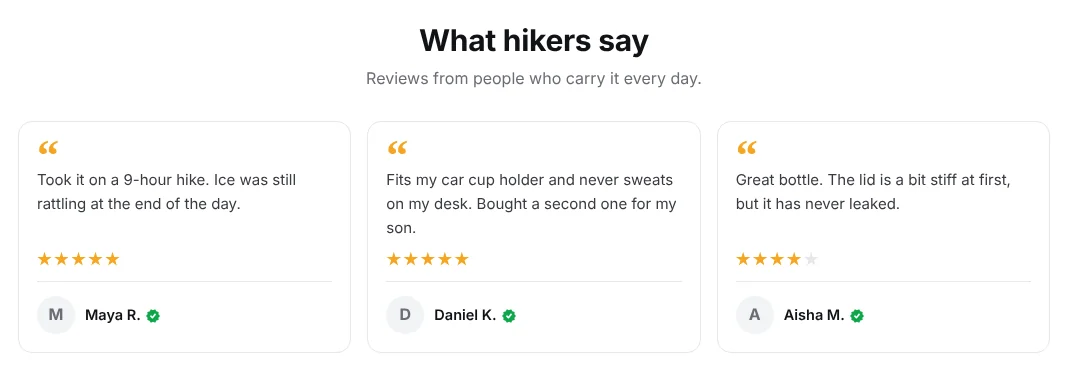
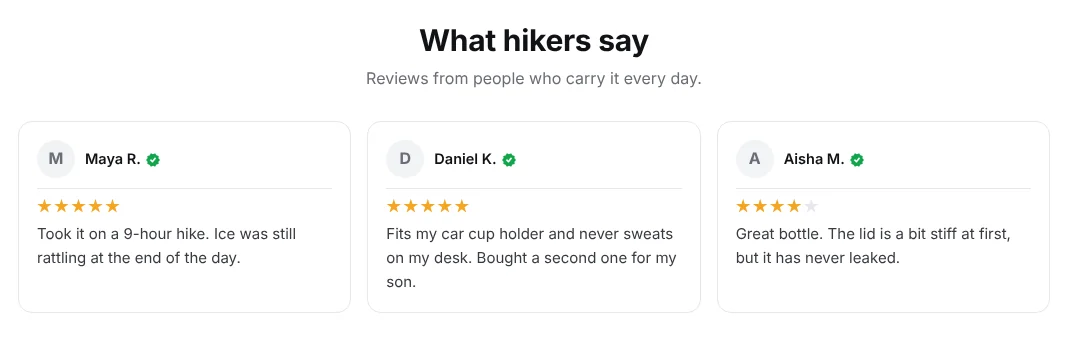
How to add it, step by step
Step 1: Open the section
Sign in to ShopyBuilder, go to All Sections and open Review Slider. The editor opens with a live preview on the right. On the left are three tabs: Content for the words, Style for colours and fonts, and Settings for width, spacing and where it shows. Every change shows up in the preview straight away, so try things freely.
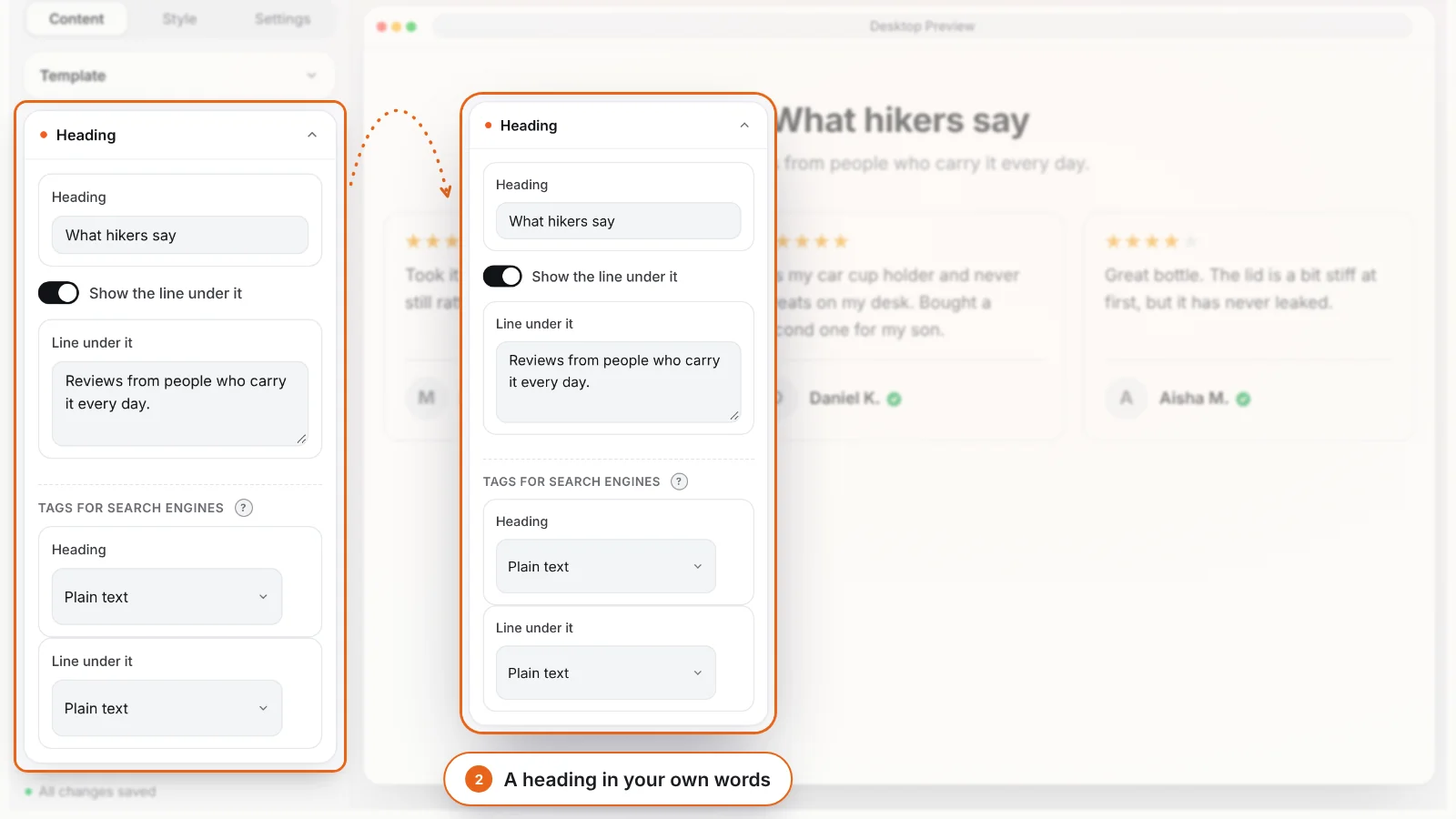
Step 2: A heading in your own words
In Heading, write a title that fits your buyers, like "What hikers say", and a short line under it. "Customer reviews" works, but a heading that names your buyers feels warmer.
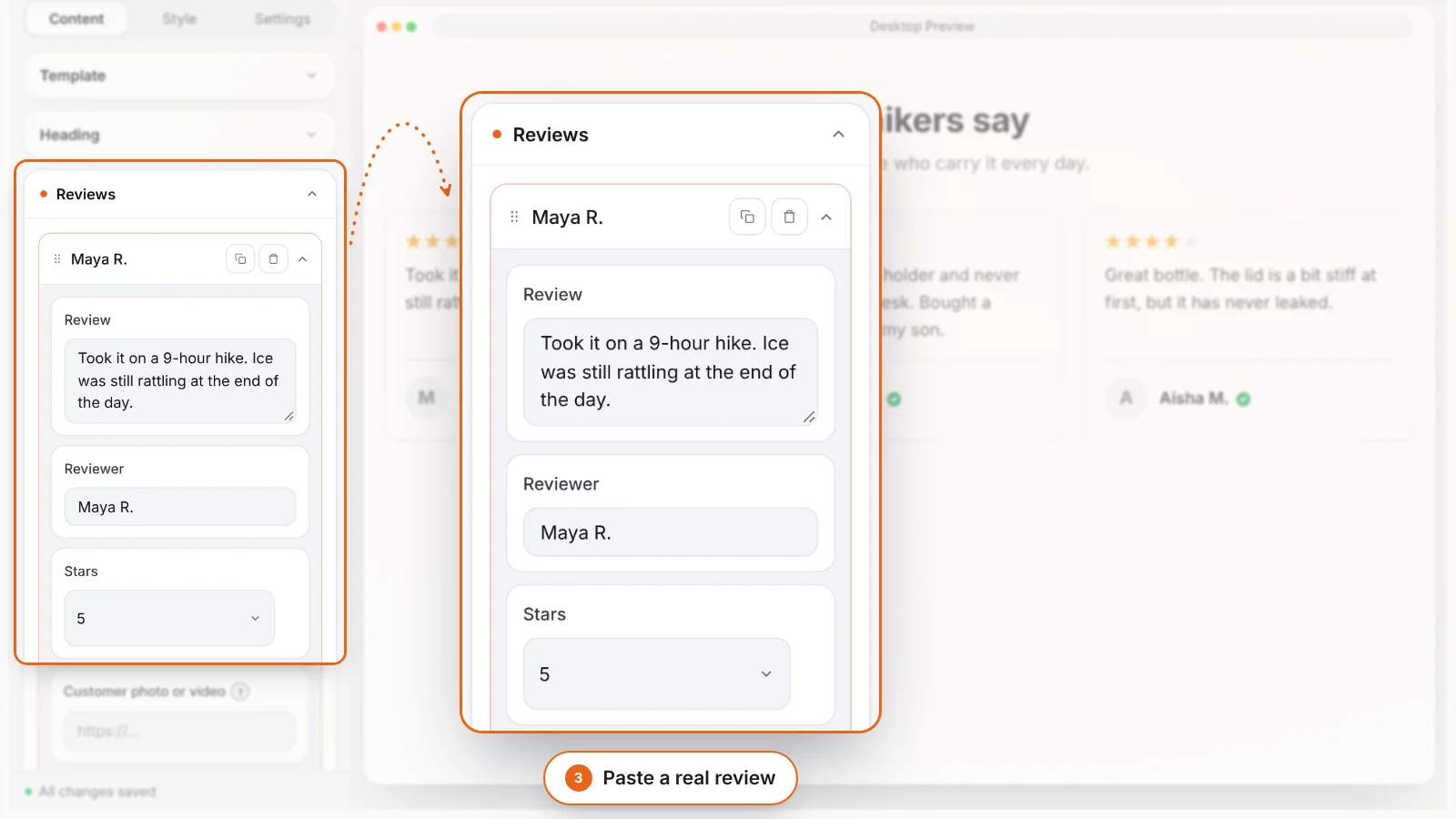
Step 3: Paste a real review
In Reviews, each card has the review, the name, the stars and an optional verified mark. You can add a customer photo or a short video too. Use Add item for more reviews and drag to reorder.
Step 4: Let it slide on its own, or not
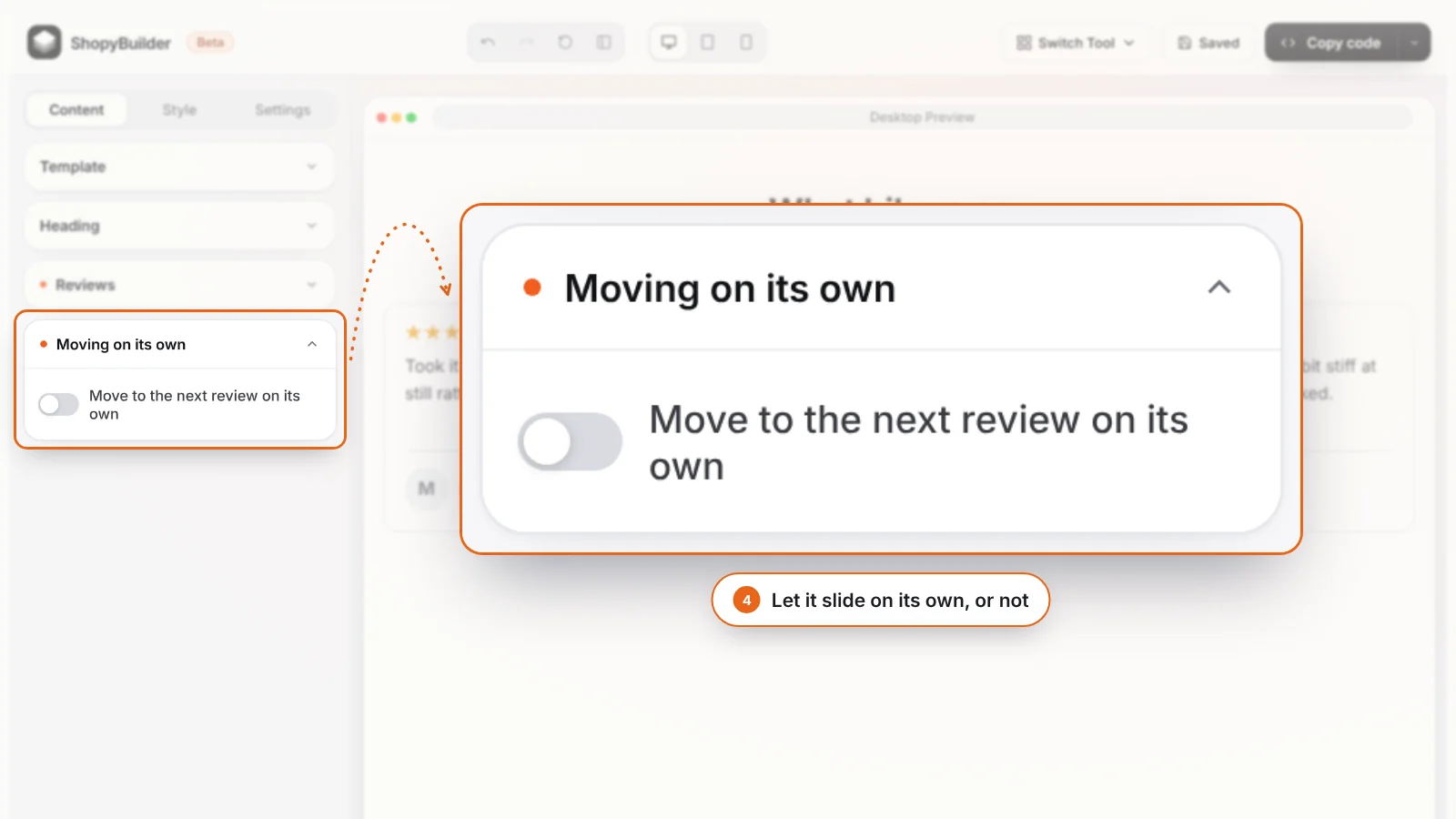
In Moving on its own, turn on automatic sliding, choose how many seconds each review stays, and let it stop while someone points at it. Or leave it still so people move it themselves.
Step 5: Copy the code
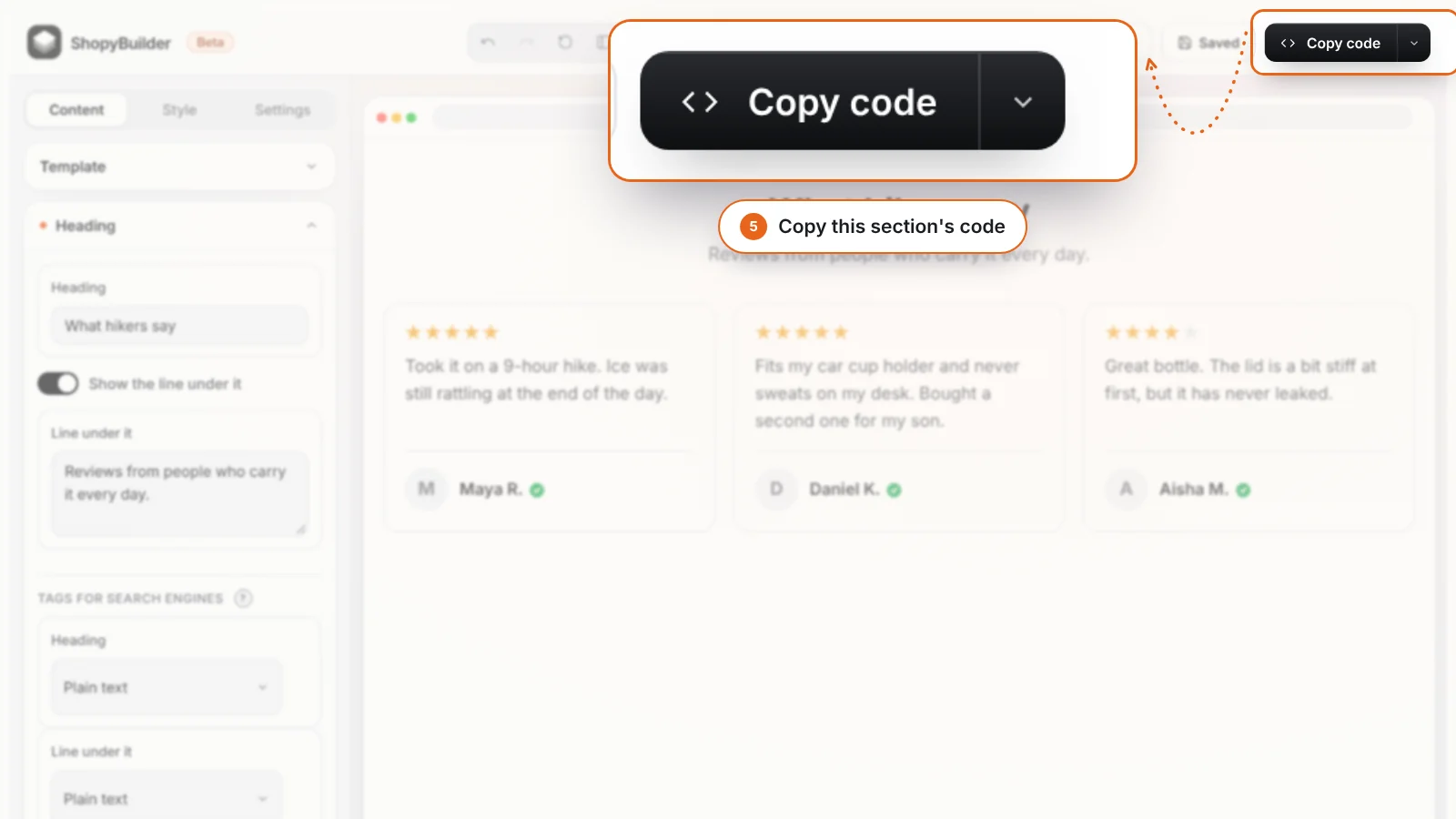
Check the section on a phone first: the desktop, tablet and phone buttons are at the top of the editor. Most of your shoppers will see it on a phone. Happy with it? Click Copy code at the top right. You get one clean block with everything the review slider needs, and nothing else to install.
Step 6: Paste it into your store
In your store's admin, open the page or product template where you want the section. Add a Custom HTML block (some stores call it custom code or custom content), paste, and save. Open the live page on your phone to see it working.
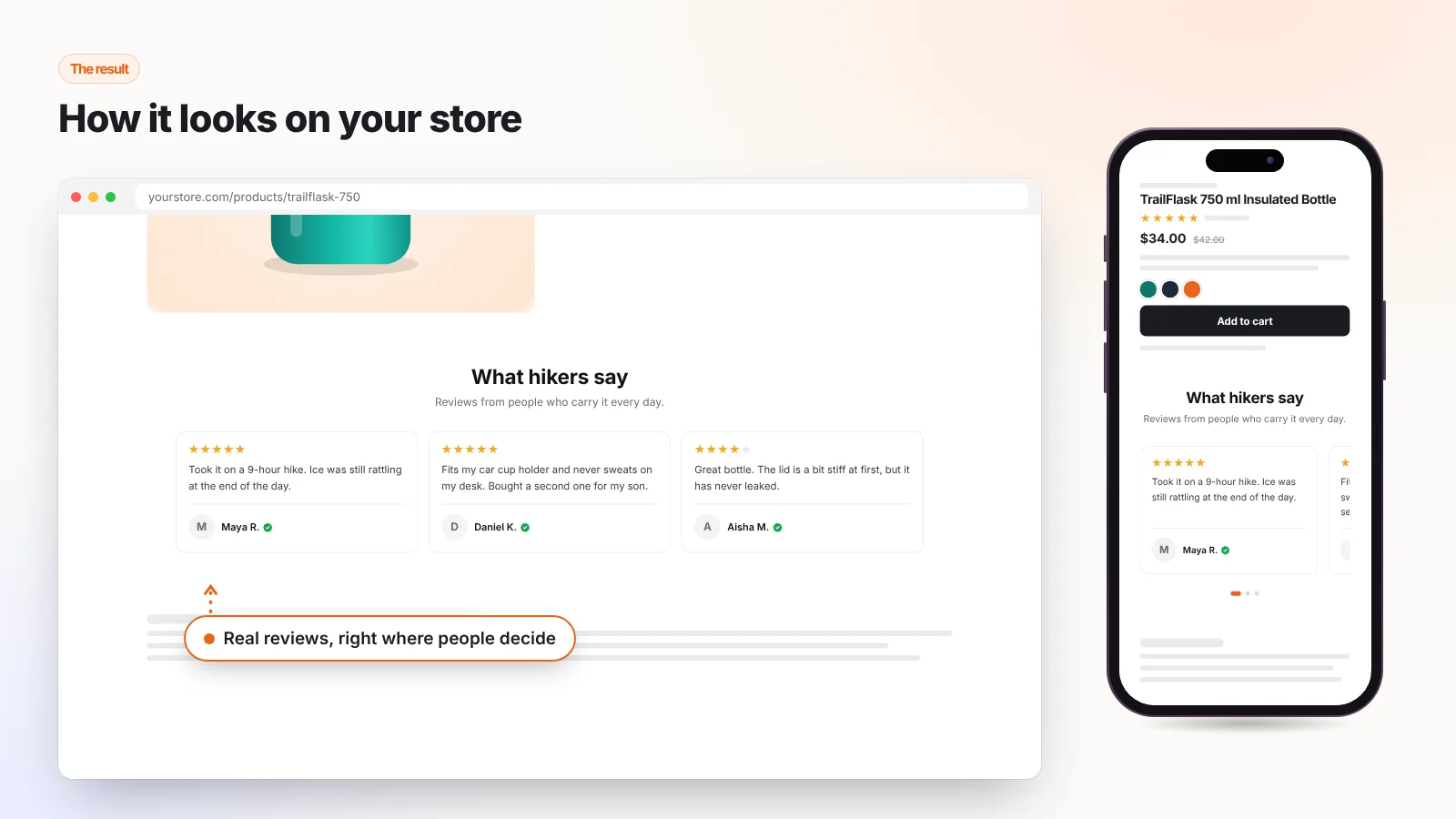
Here is what that looks like on a store, on a computer and on a phone:
How to pick the reviews
- Specific beats general. "Ice was still rattling after a 9-hour hike" beats "Great product!".
- Answer a doubt. Pick reviews about the things people worry about: quality, size, leaks, delivery.
- Include a four-star one. A mix looks real. A small honest complaint ("the lid is a bit stiff at first") builds trust.
Mistakes to avoid
- Writing reviews yourself. Only use what real customers wrote, with their permission.
- Twenty reviews. Three to eight is plenty; few people read more.
- Old reviews forever. Swap in fresh ones now and then.
Common questions
Will it work with my store?
Yes. The code is plain HTML, CSS and JavaScript, so it works on any ecommerce website that lets you add custom HTML to a page: hosted store builders, open-source carts or a site of your own.
Will it slow my page down?
No. Each section is one small block of code with no outside libraries to load.
Does it pull reviews from my store automatically?
No. You paste the reviews you want to show. That way you choose the ones that answer buyers' questions best, and it works on any store.
Can I add customer photos?
Yes. Each review can have a customer photo or a short video.
Build your next product page with AI
Sections, copy, product creatives and social posts in minutes. Export clean code for your online store.