 ShopyBuilder
Your shopper has probably owned something like your product before. Maybe a cheap plastic bottle that leaked in their bag. When they look at yours, they are quietly asking: why is this better, and is it worth more?
A comparison section answers that out loud. It puts your product next to "the usual option" and shows the difference row by row. Done honestly, it is one of the most convincing parts of a page.
When it works best
- Your product costs more than the common option, and you need to show why.
- There is a clear "usual" choice people know: plastic bottles, regular cables, store brands.
- You have real, provable differences.
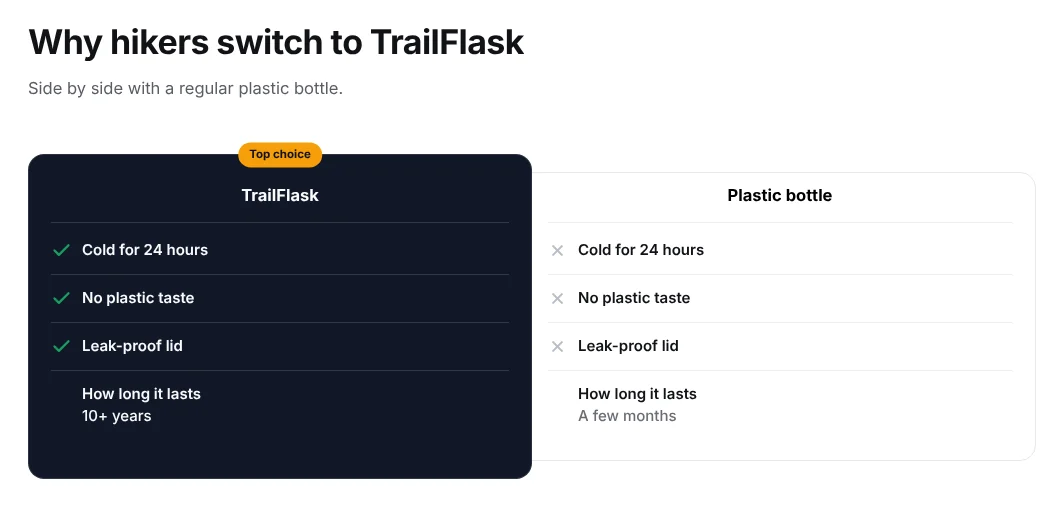
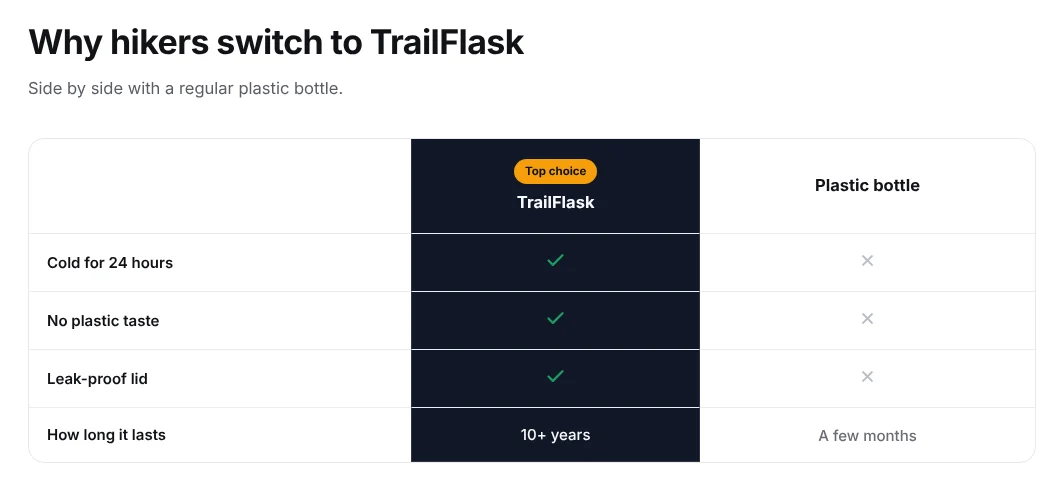
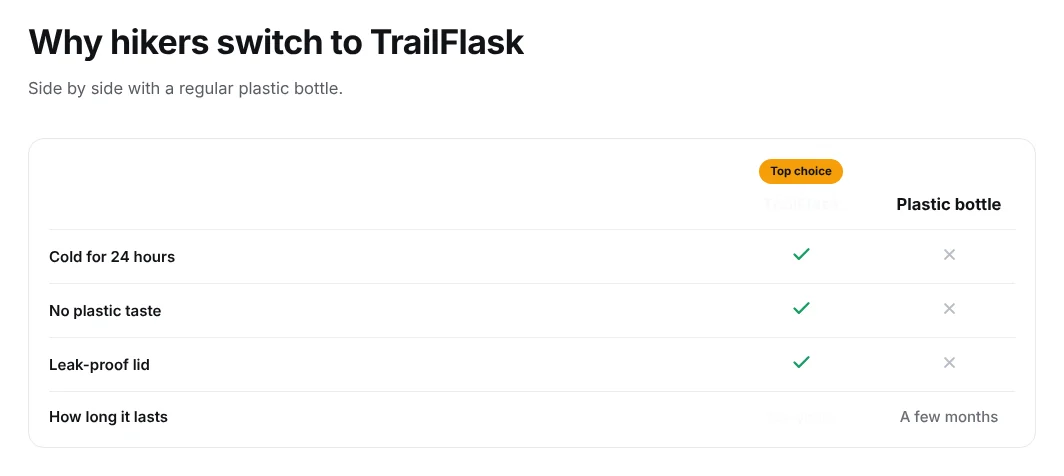
Pick a look
How to add it, step by step
Step 1: Open the section
Sign in to ShopyBuilder, go to All Sections and open Compare Section. The editor opens with a live preview on the right. On the left are three tabs: Content for the words, Style for colours and fonts, and Settings for width, spacing and where it shows. Every change shows up in the preview straight away, so try things freely.
Step 2: Your heading
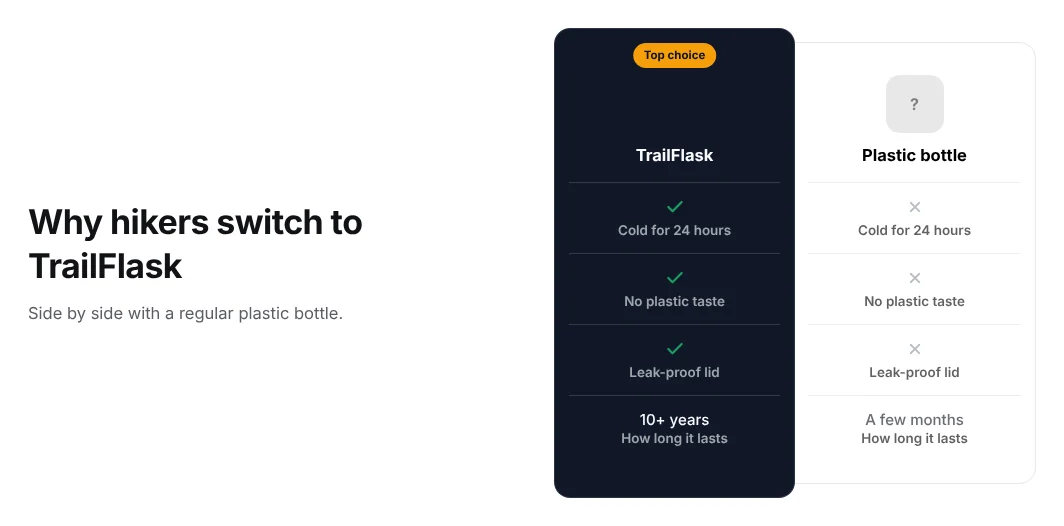
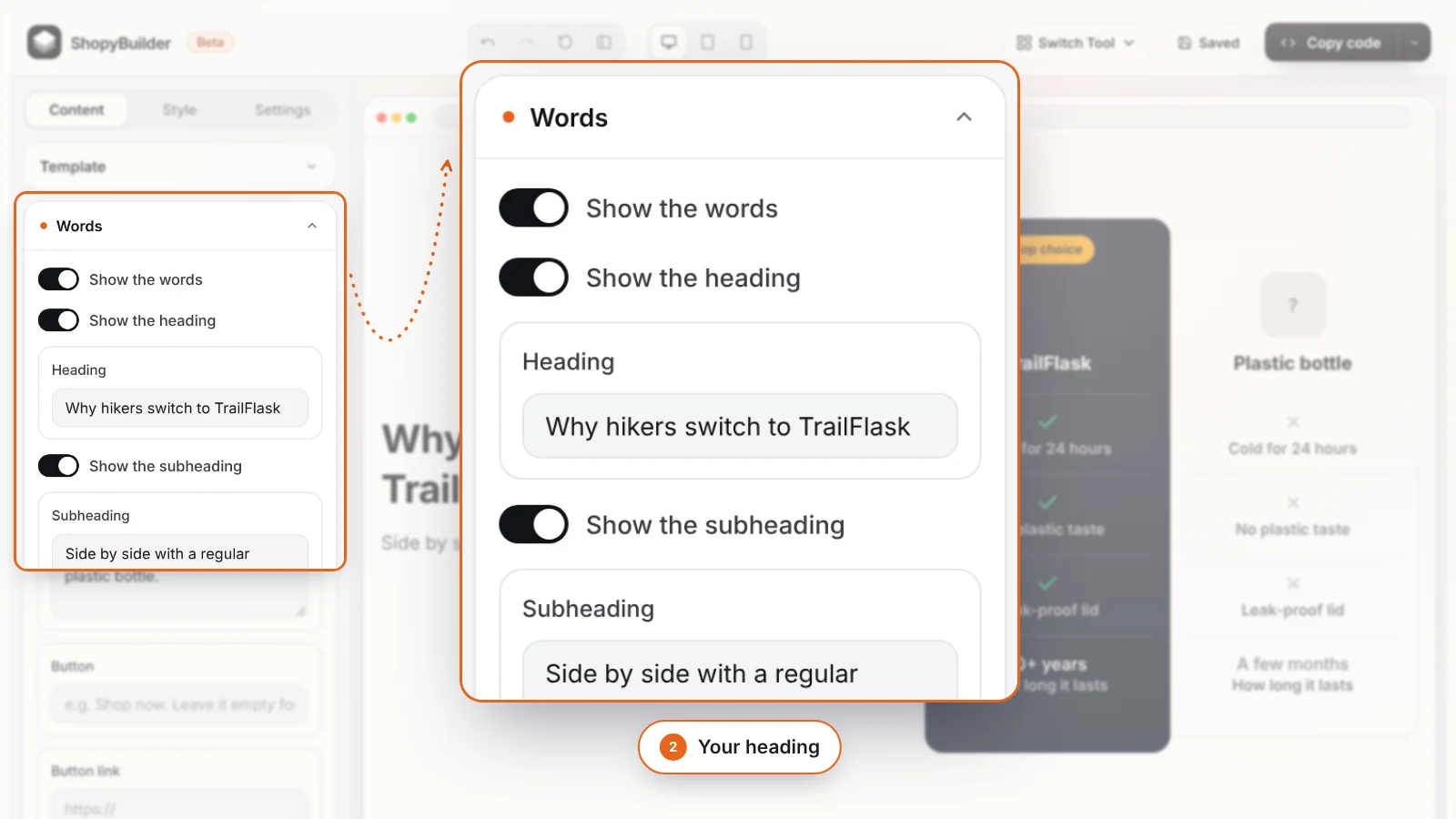
In Words, write a heading that makes a promise, like "Why hikers switch to TrailFlask", and a line under it.
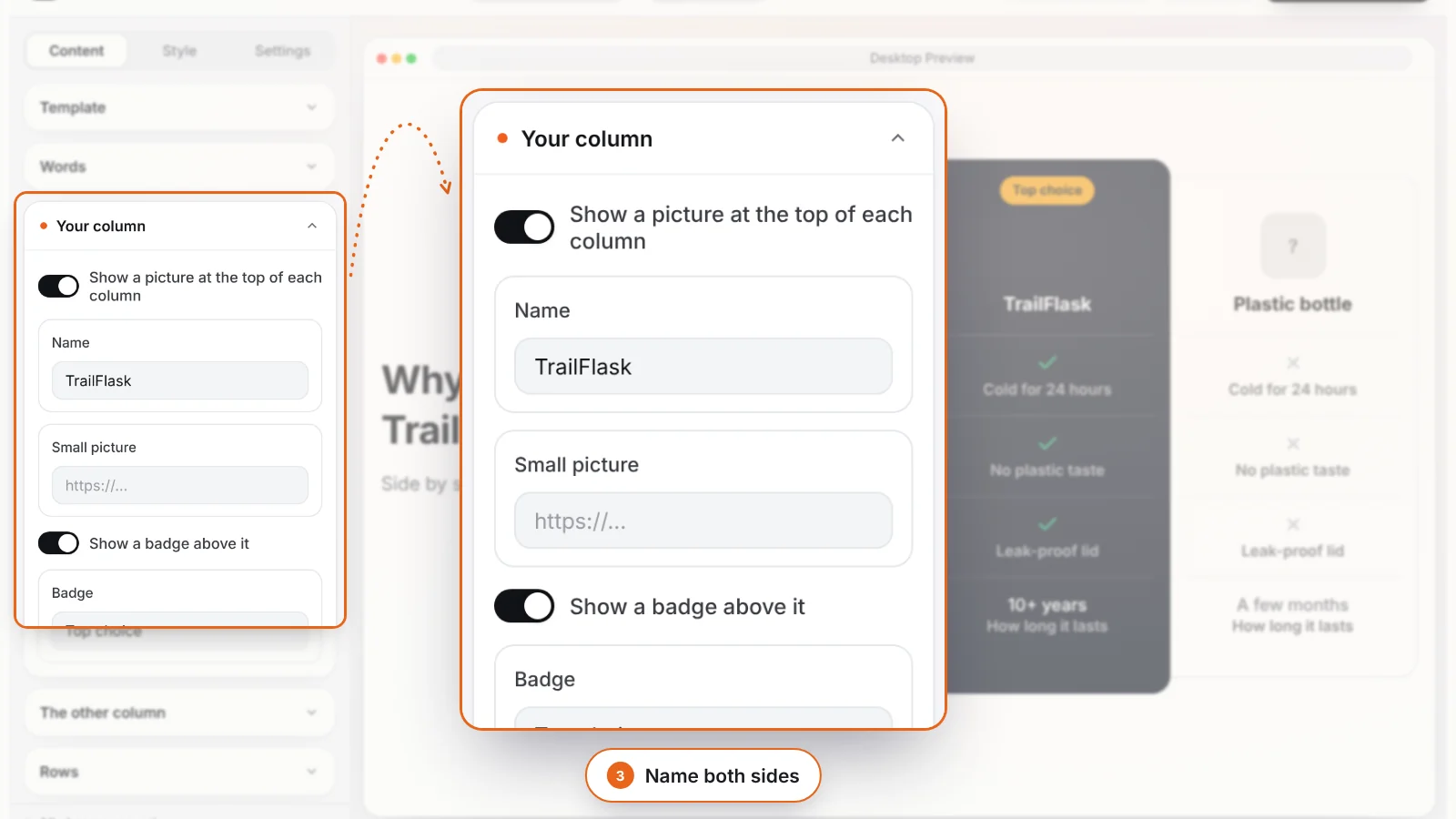
Step 3: Name both sides
In Your column, write your product's name and a badge ("Top choice"). In The other column, write what you compare against: a type of product, like "Plastic bottle", not another brand.
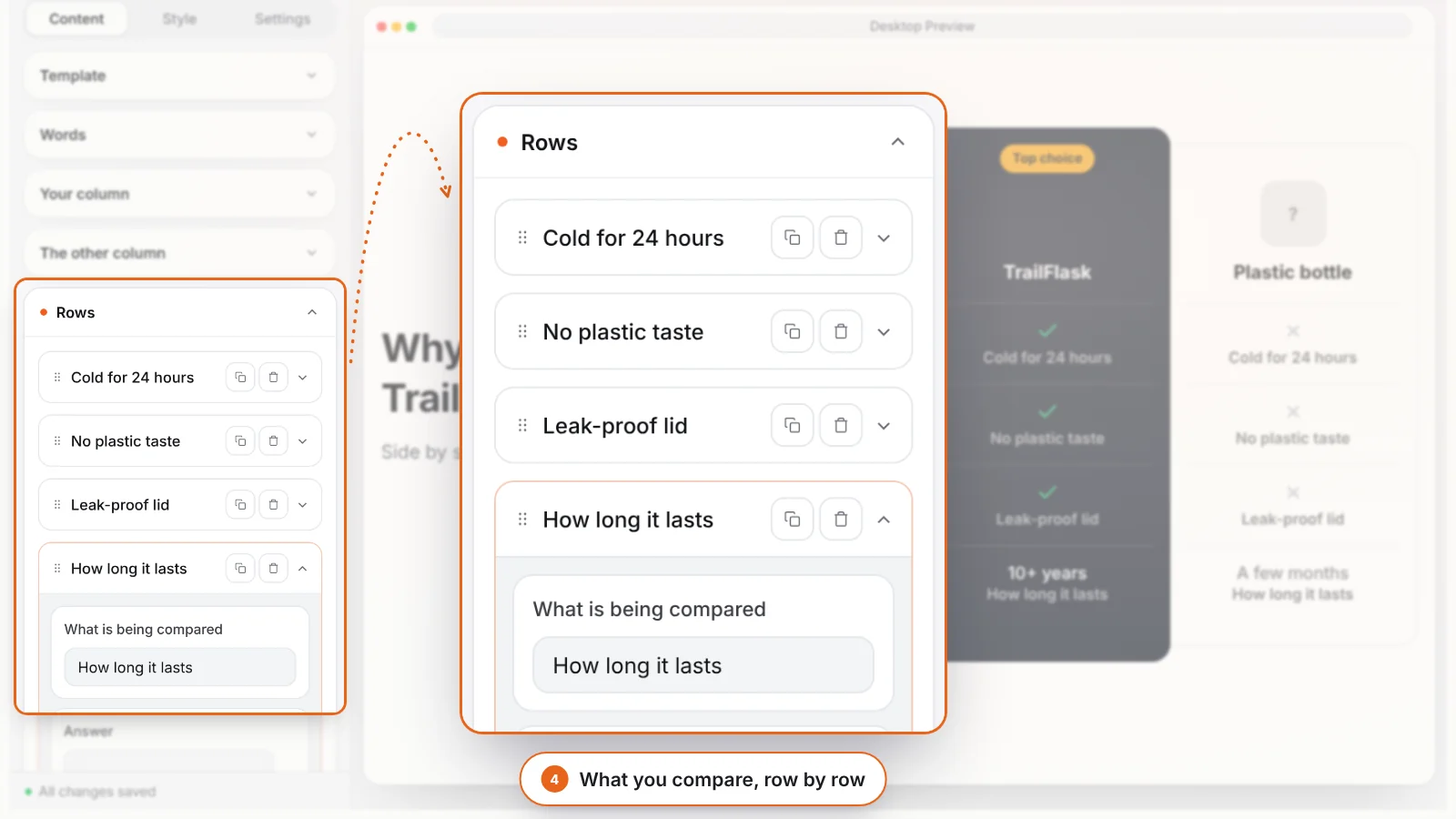
Step 4: What you compare, row by row
In Rows, write what is compared and answer for each side: a tick and a cross, or a few words ("10+ years" against "A few months").
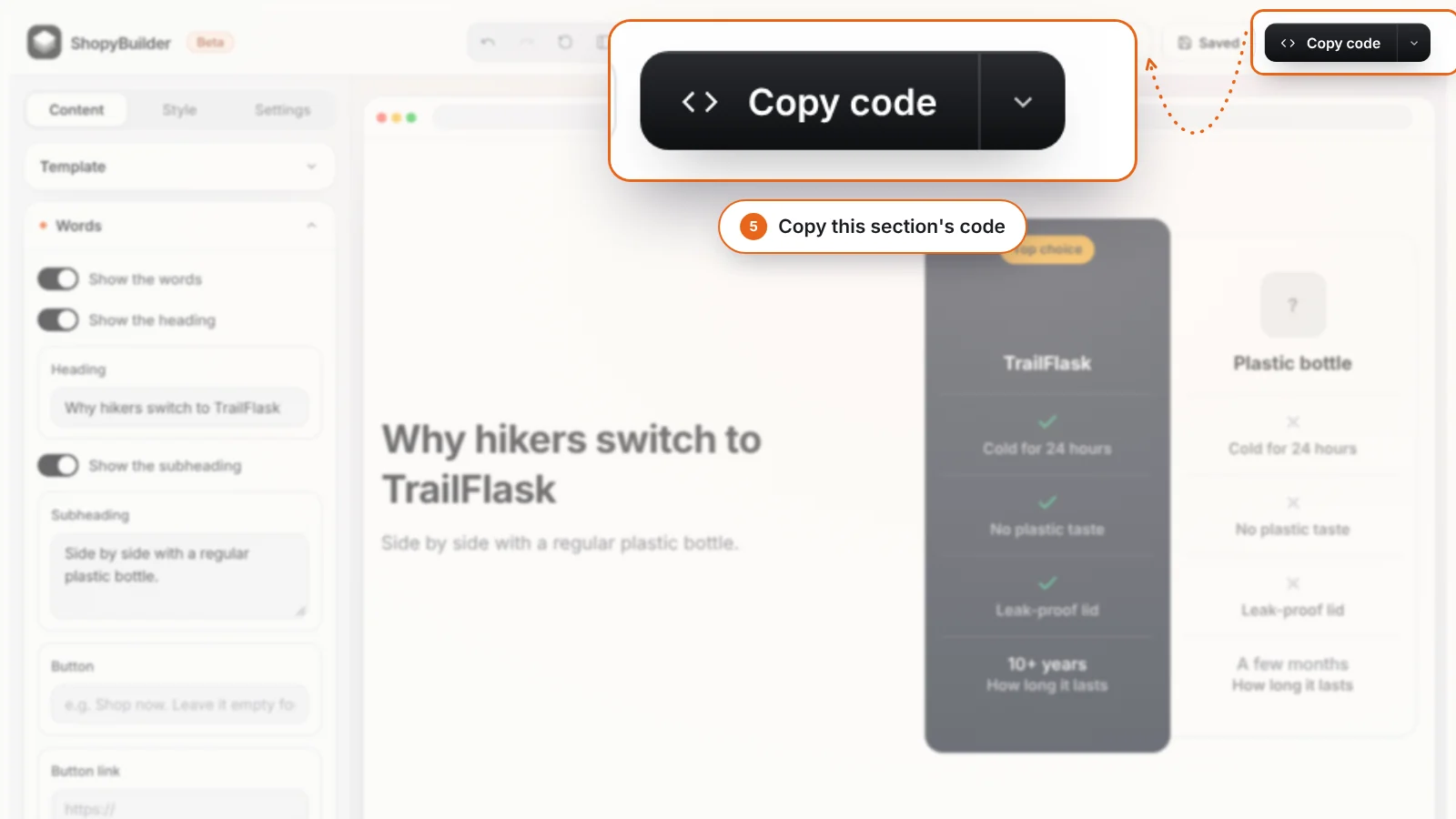
Step 5: Copy the code
Check the section on a phone first: the desktop, tablet and phone buttons are at the top of the editor. Most of your shoppers will see it on a phone. Happy with it? Click Copy code at the top right. You get one clean block with everything the comparison section needs, and nothing else to install.
Step 6: Paste it into your store
In your store's admin, open the page or product template where you want the section. Add a Custom HTML block (some stores call it custom code or custom content), paste, and save. Open the live page on your phone to see it working.
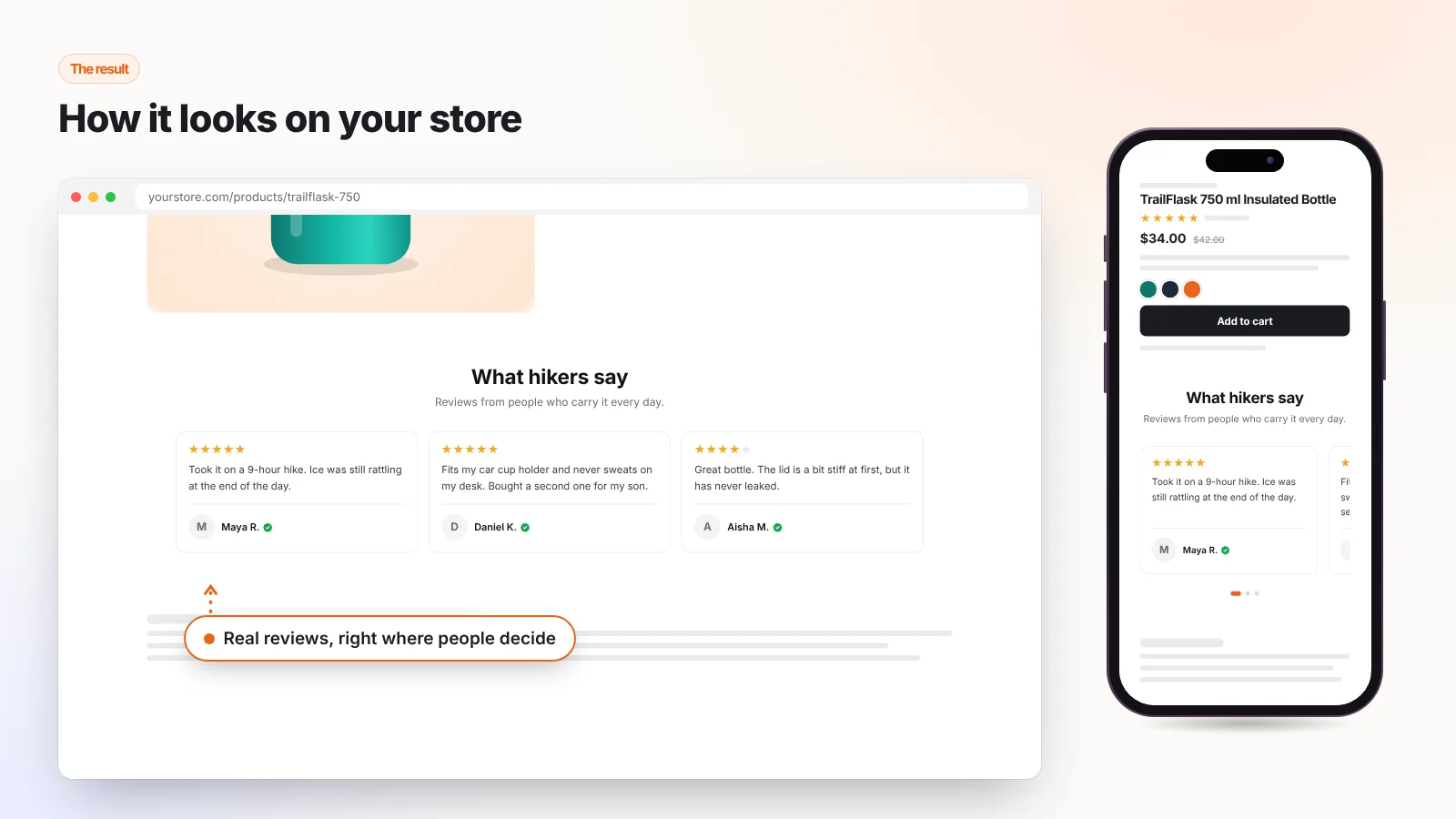
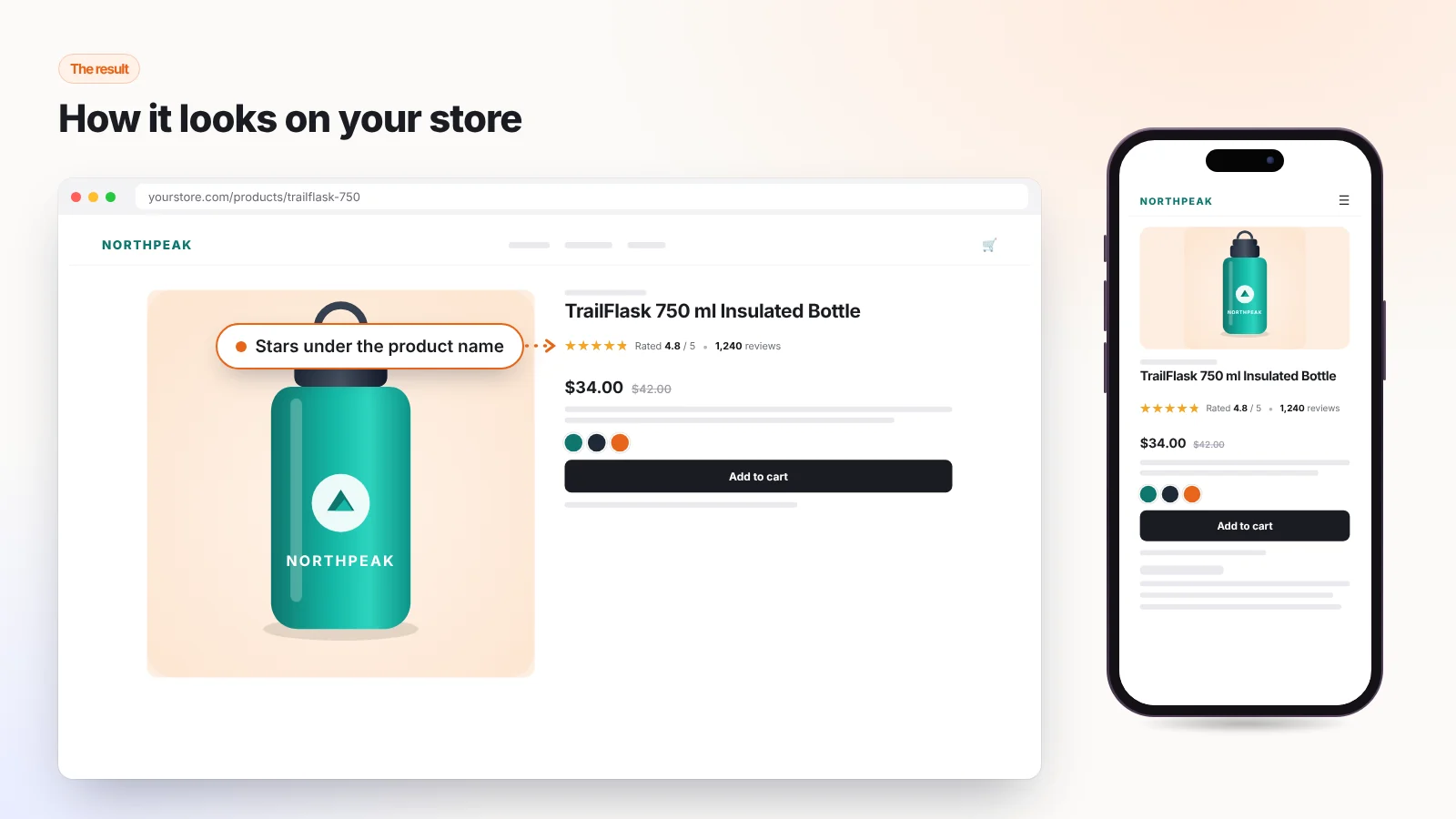
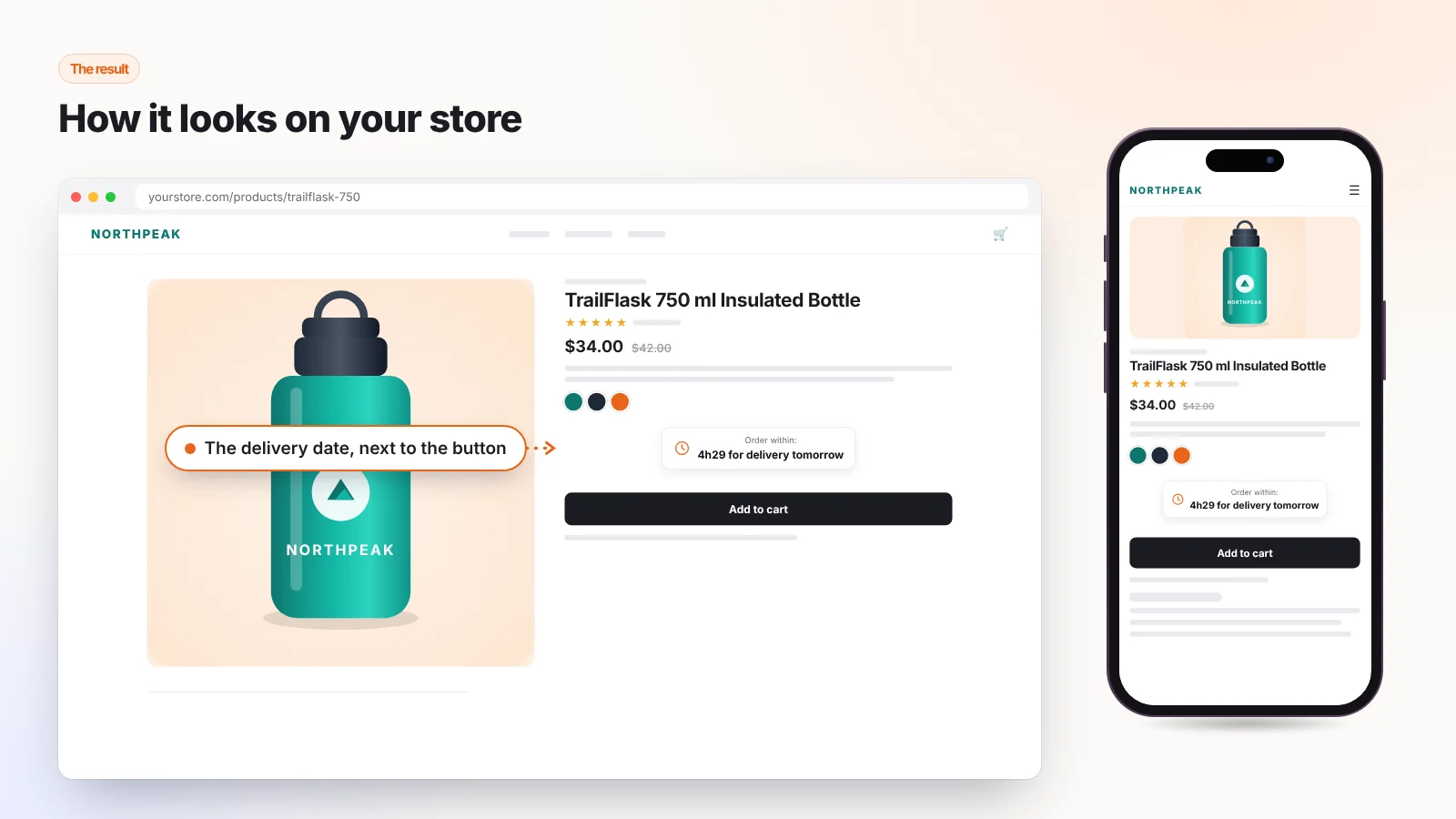
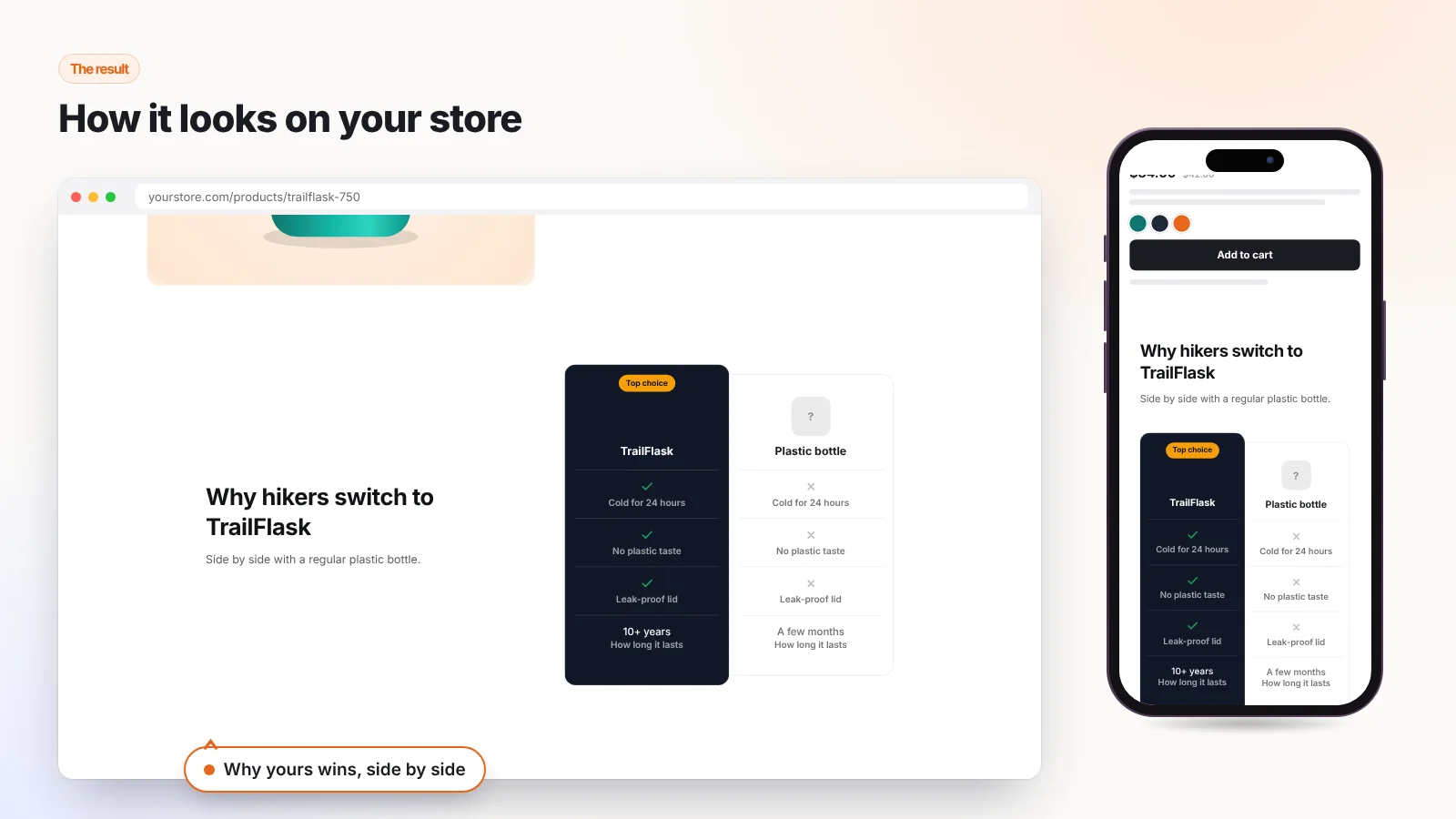
Here is what that looks like on a store, on a computer and on a phone:
Rows that work
- What it is made of ("Steel" vs "Plastic")
- How long it lasts ("10+ years" vs "A few months")
- Warranty, delivery and returns
- The one thing buyers complain about with the usual option ("No plastic taste")
Mistakes to avoid
- Naming a competitor. Compare against a type, not a brand. It is fairer and avoids legal trouble.
- Claims you cannot prove. Four honest rows beat ten shaky ones.
Common questions
Will it work with my store?
Yes. The code is plain HTML, CSS and JavaScript, so it works on any ecommerce website that lets you add custom HTML to a page: hosted store builders, open-source carts or a site of your own.
Will it slow my page down?
No. Each section is one small block of code with no outside libraries to load.
Can I show pictures at the top of each column?
Yes, in the Classic look: turn on the column pictures under Template.
Build your next product page with AI
Sections, copy, product creatives and social posts in minutes. Export clean code for your online store.