 ShopyBuilder
Here is a story every store owner knows. A shopper adds your product to the cart, reaches checkout, and remembers seeing a discount somewhere. An email? A banner? They go looking, cannot find it, and the tab closes. The code was real. It was just in the wrong place.
The Coupon Widget puts your codes on the product page as small cards. One tap copies the code, the card says "Copied", and the shopper carries on to checkout with it.
When it works best
- A first-order offer for new visitors ("10% off your first bottle").
- Free delivery above an amount, so people add one more item.
- A festival or launch offer with its own code.
Pick a look



How to add it, step by step
Step 1: Open the section
Sign in to ShopyBuilder, go to All Sections and open Coupon Widget. The editor opens with a live preview on the right. On the left are three tabs: Content for the words, Style for colours and fonts, and Settings for width, spacing and where it shows. Every change shows up in the preview straight away, so try things freely.
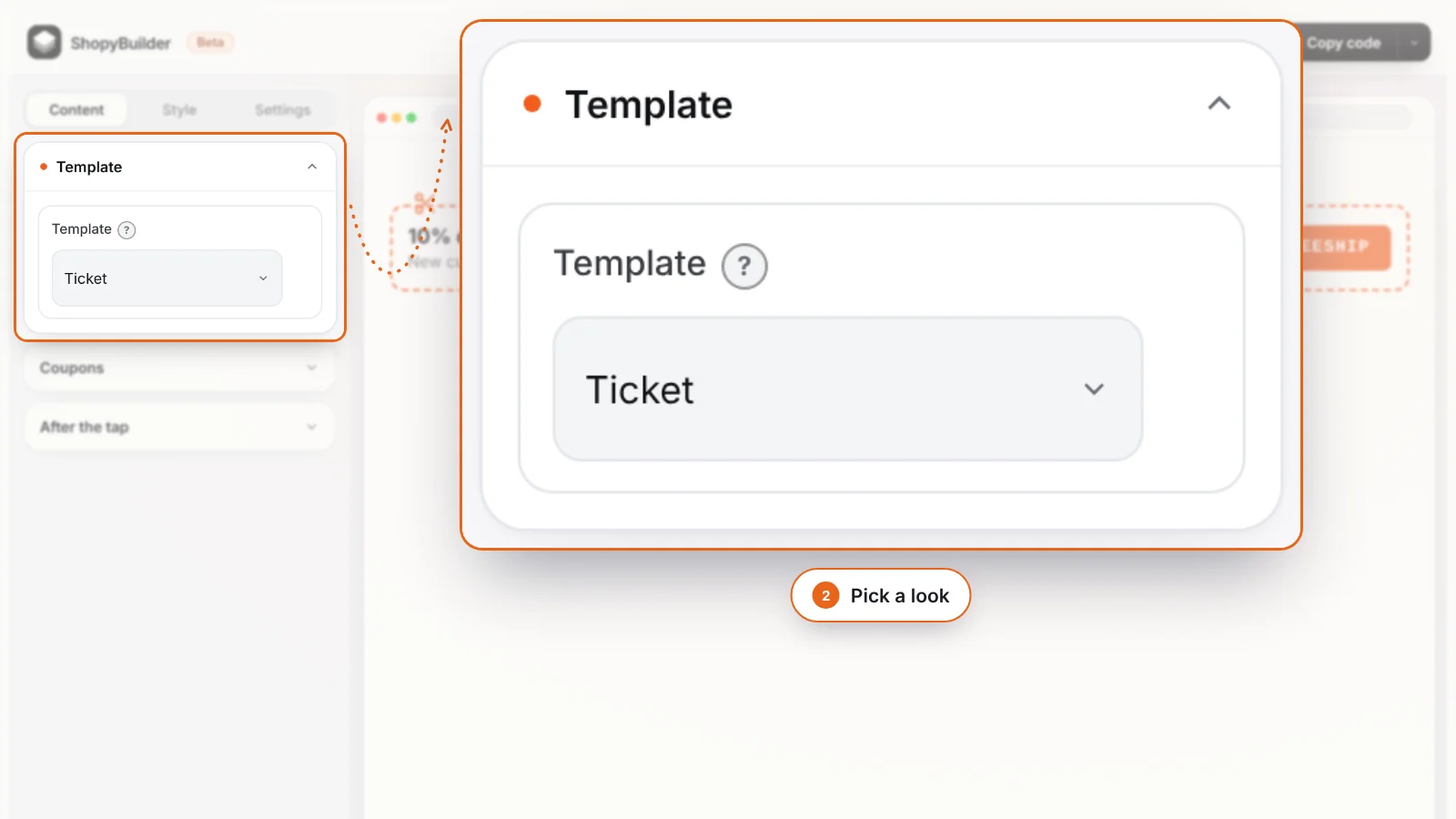
Step 2: Pick a look
Open Template and choose Ticket, Split or Strip.
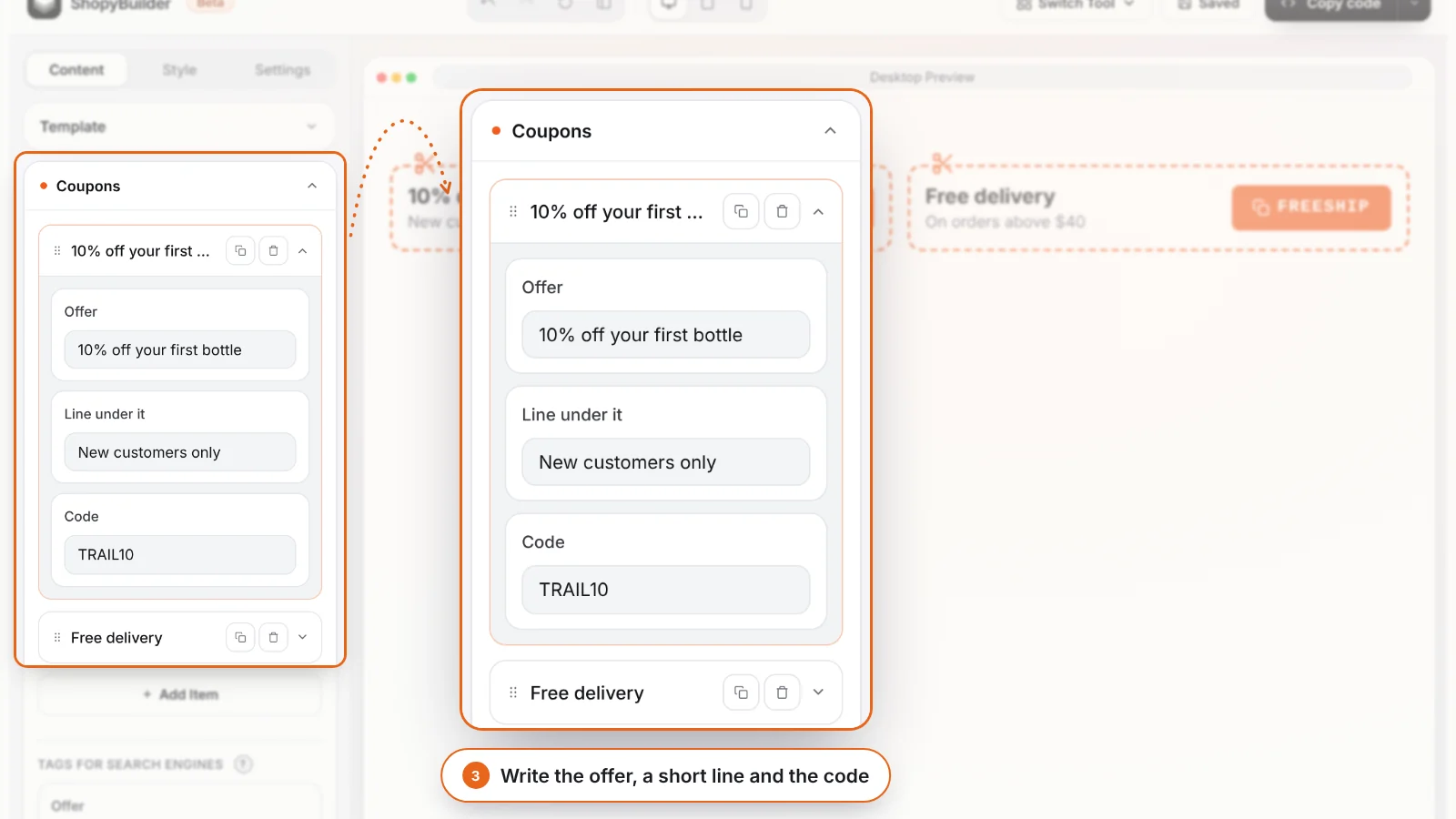
Step 3: Write the offer, a short line and the code
In Coupons, each card has the offer ("10% off your first bottle"), a short line with the condition ("New customers only") and the code ("TRAIL10"). Make sure the code really works at your checkout before you publish.
Step 4: Swipe row or stack on phones
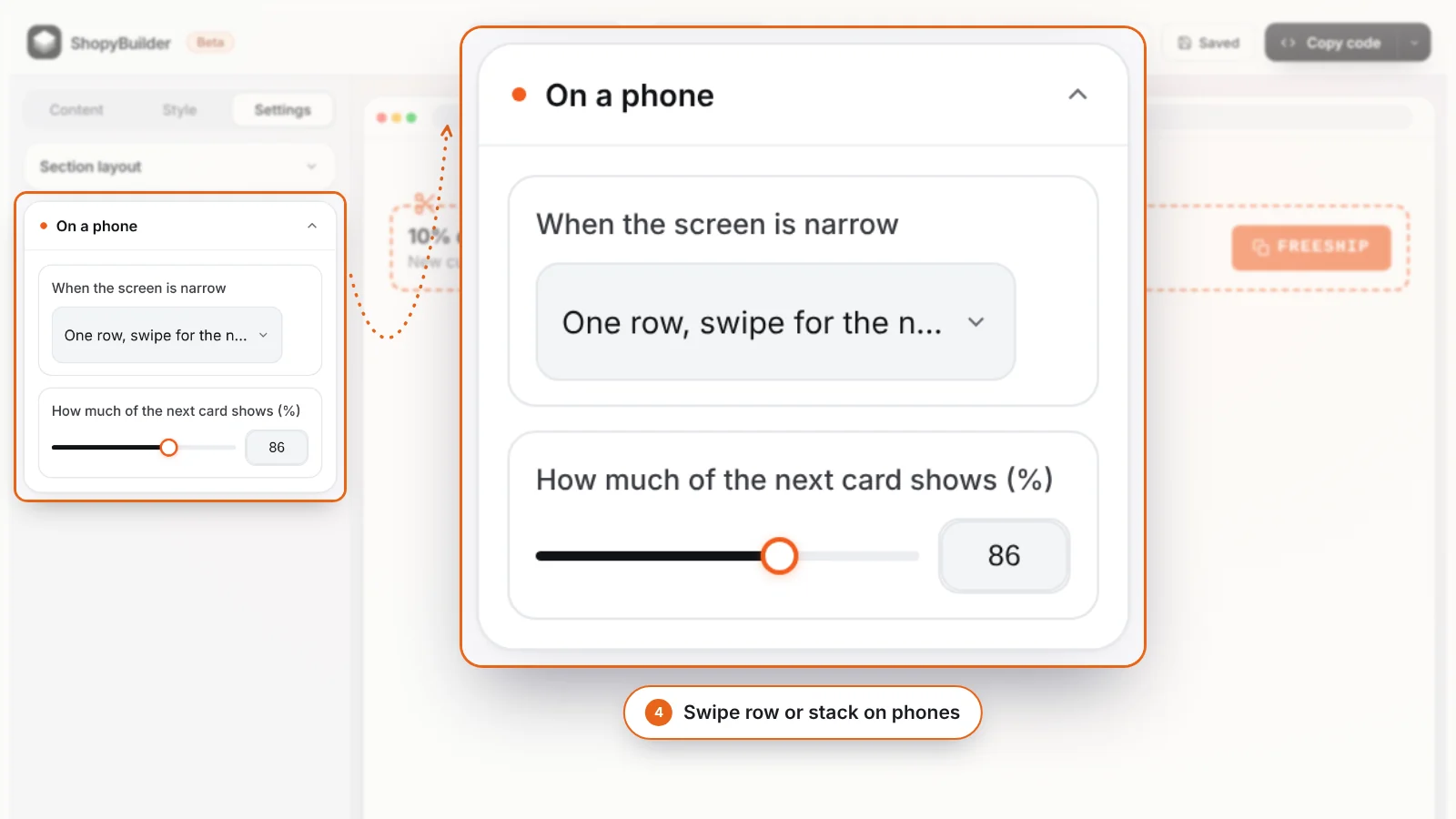
On the Settings tab, open On a phone. Choose one row that people swipe, with the next card peeking in from the edge, or a stack with one card under the other.
Step 5: Copy the code
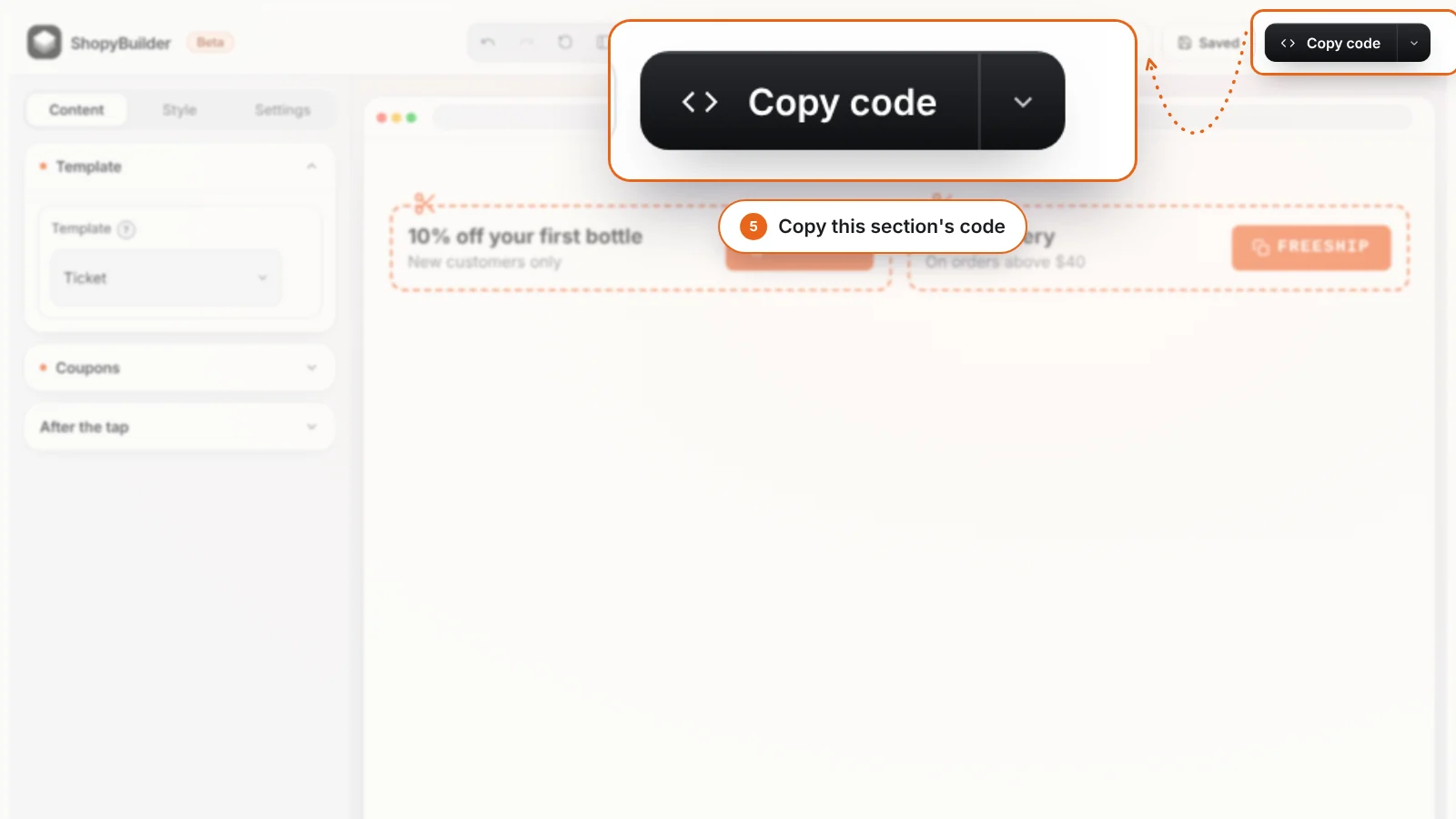
Check the section on a phone first: the desktop, tablet and phone buttons are at the top of the editor. Most of your shoppers will see it on a phone. Happy with it? Click Copy code at the top right. You get one clean block with everything the coupon section needs, and nothing else to install.
Step 6: Paste it into your store
In your store's admin, open the page or product template where you want the section. Add a Custom HTML block (some stores call it custom code or custom content), paste, and save. Open the live page on your phone to see it working.
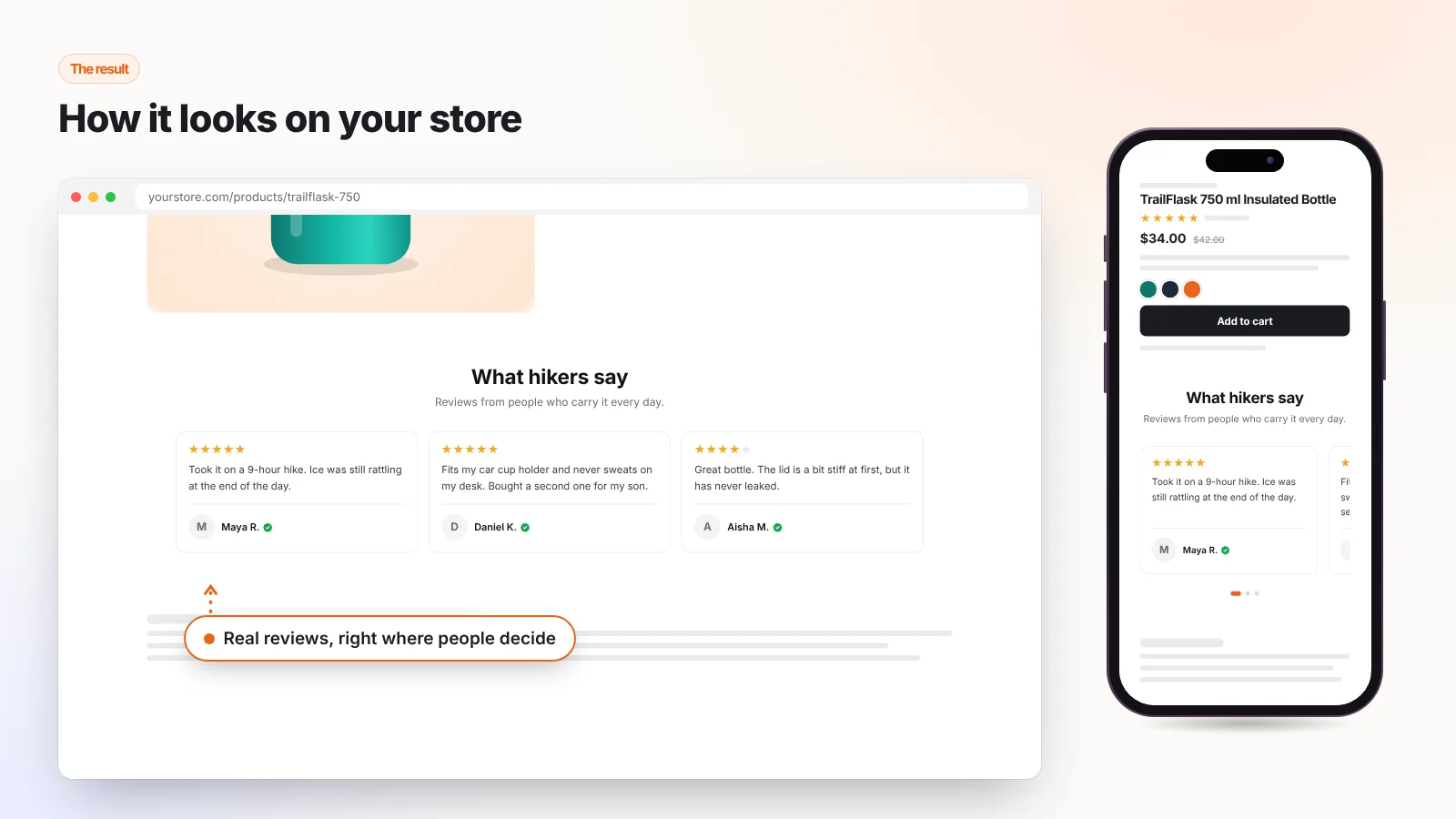
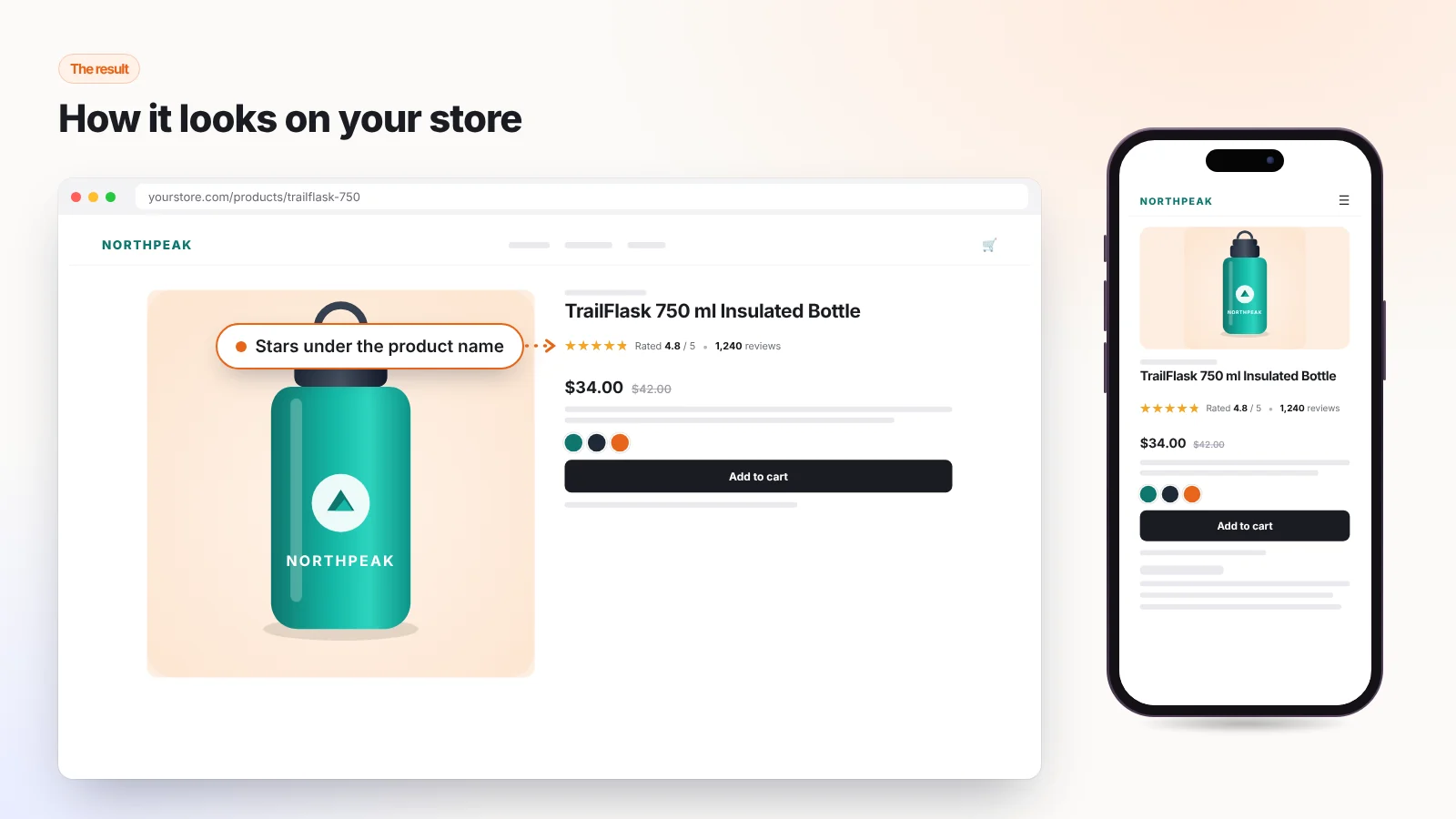
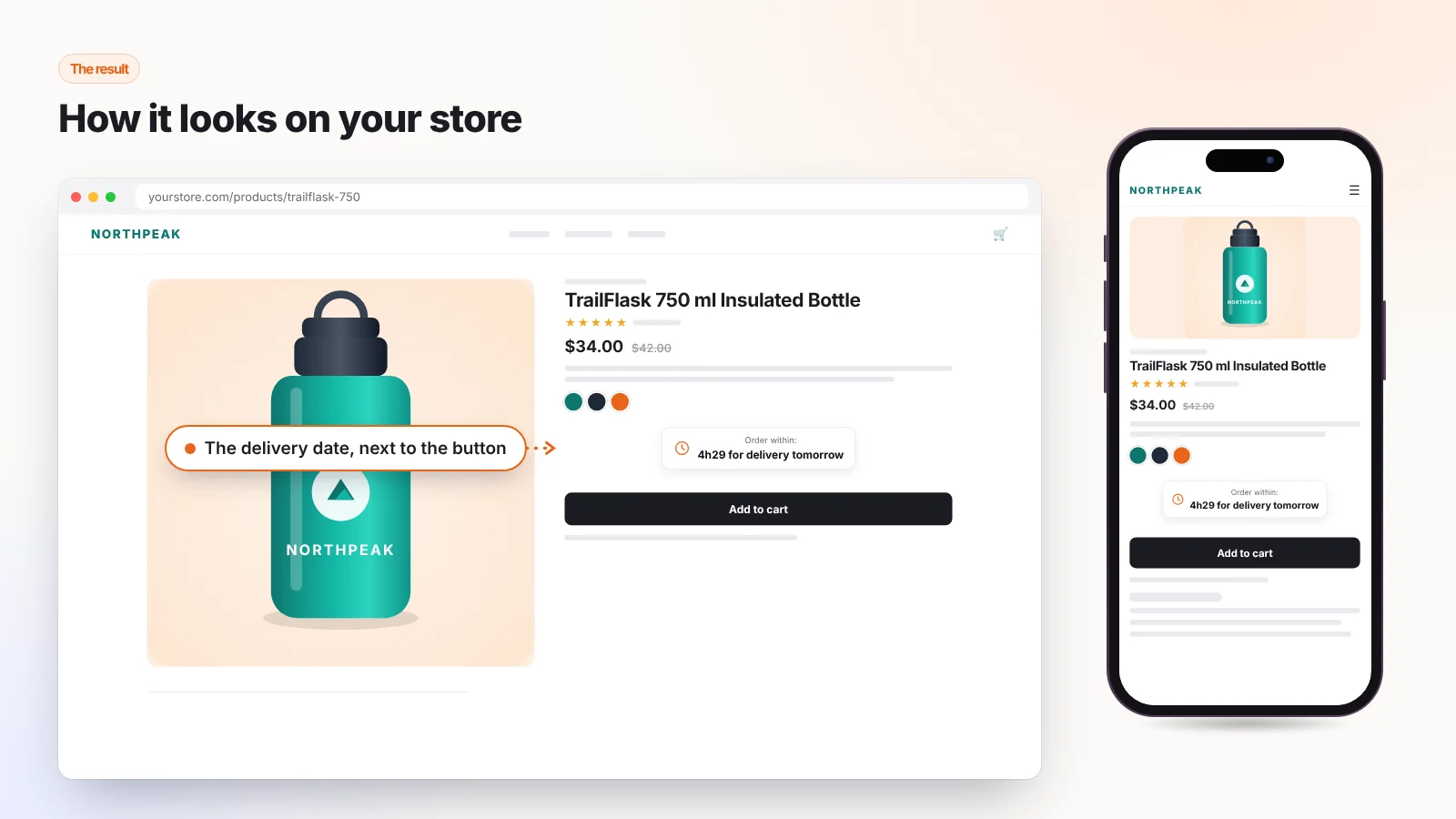
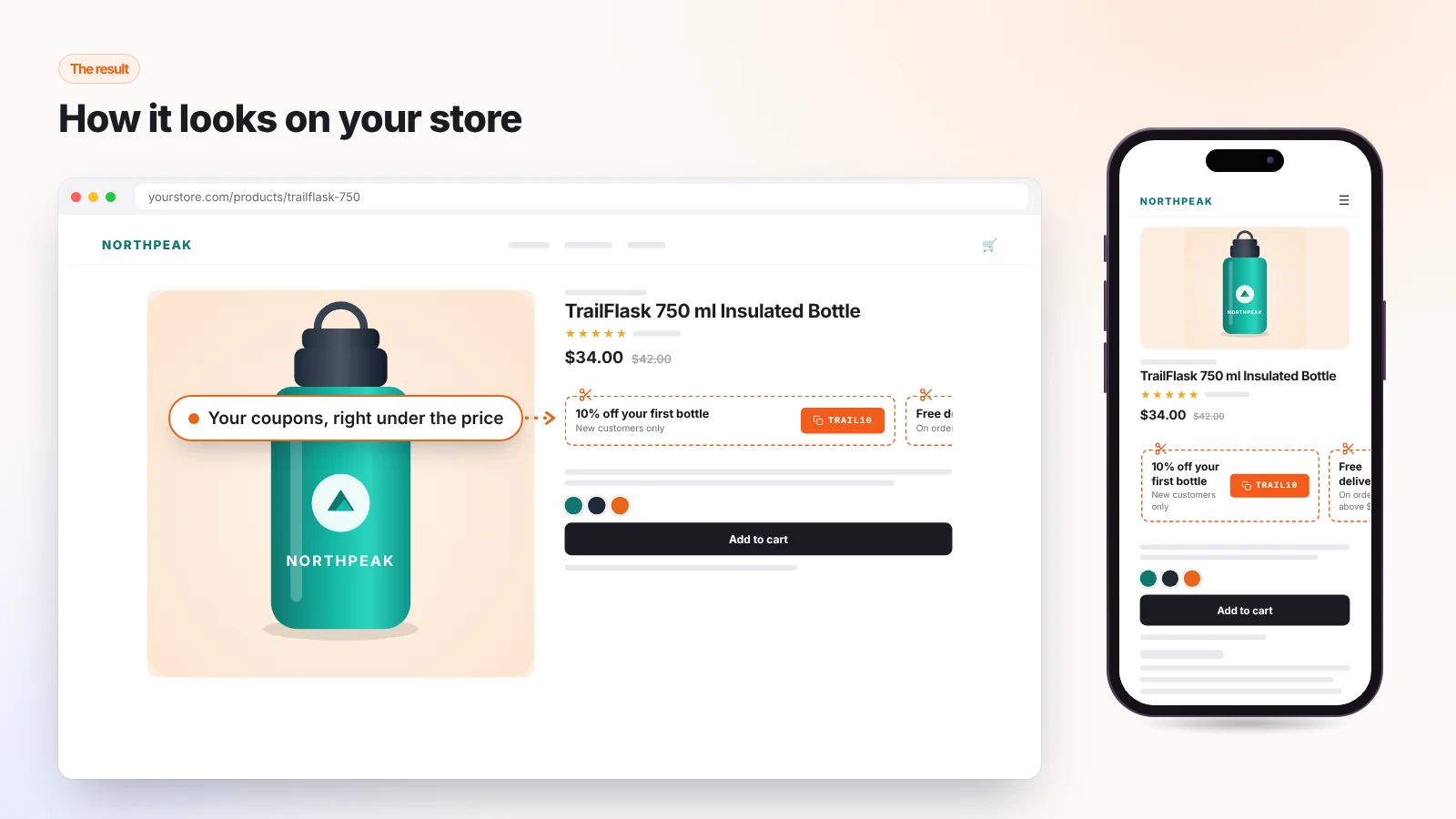
Here is what that looks like on a store, on a computer and on a phone:
Offers you can borrow
- "10% off your first order", small line: "New customers only"
- "Free delivery", small line: "On orders above $40"
- "Buy 2, get 15% off", small line: "Any colours"
Mistakes to avoid
- Too many codes. Two or three at most; more choices slow people down.
- Hidden conditions. Put the rule in the small line so nobody is surprised at checkout.
- Expired codes. Remove the card the day the code stops working.
Common questions
Will it work with my store?
Yes. The code is plain HTML, CSS and JavaScript, so it works on any ecommerce website that lets you add custom HTML to a page: hosted store builders, open-source carts or a site of your own.
Will it slow my page down?
No. Each section is one small block of code with no outside libraries to load.
Does the section create the discount?
No. Create the code in your store's admin first, then show it here. The section shows and copies it.
Does tap-to-copy work on phones?
Yes, on phones, tablets and computers, with a "Copied" message after the tap.
Build your next product page with AI
Sections, copy, product creatives and social posts in minutes. Export clean code for your online store.